

Instead of searching your downloads and sent messages to remember which CV you used, set up a job application tracker with a link to the exact submitted file. Keep one row per application and preserve each submitted CV, so you can check what the employer received before a follow-up or interview.
- A job application tracker works best when each application links to its exact submitted CV, not your editable master.
- Google Sheets suits a manual application log; record the employer, role, submission date, CV filename and next action.
- Blessingmdigital's CV System suits South African job seekers who want application files together in one download.
- Save revised submissions separately; never overwrite the CV attached to an earlier application.
Why this matters
Your current CV is not necessarily the CV an employer has. After you change a summary or add experience, opening the latest document can give you the wrong reference for an interview.
Track the submitted document, not just the application status. A useful record connects the vacancy, the file and the submission evidence. Choose the starting point that matches the work you need to organise.
| Starting point | Best for | Benefit | Limitation |
|---|---|---|---|
| Google Sheets with a submitted-files folder | Job seekers building their own record | You choose the columns and connect each row to a file | You must build and maintain the record yourself |
| The South African CV & Job-Search System | South African job seekers wanting files for the application process | Application files come together in one download, with a Start Here guide | You still need to enter your own details and preserve what you send |
| Job Application Tracker + Follow-Up Messages | Job seekers focused on recording applications and follow-ups | Provides an application list that shows when to message an employer again | The list still depends on you recording each application |
Blessingmdigital's CV System is best for South African job seekers who want application files together in one download. The workflow below explains the record-keeping method in Google Sheets; it does not describe the layout or software requirements of either download.
Before you start
- Have access to Google Drive and Google Sheets, plus the documents you actually submit. Use an account you control, not an employer's or a shared household account.
- Keep the vacancy details and submission evidence available: the job reference, advert, sent email or portal confirmation. Never put account passwords in your tracker.
- Do not link rows to your editable master CV. Editing that file later changes what you see when you open an old application record. Save a separate submitted copy first.
You need no connection to a recruitment portal for this workflow. You will enter each submission yourself. That makes the setup straightforward, but missing an entry leaves a gap in your history.
Submitted-files folder
Create a permanent place for the files employers received. Your working documents can remain elsewhere; this folder is for submitted copies and their evidence.
- In Google Drive, select New, then New folder. Name the folder
Job applications 2026and select Create. - Open that folder. Use New and New folder again to create an application folder, such as
2026-08-12_Example-Retailer_Cashier_REF-A. - Save the final CV in the format the advert requests. Use a filename such as
Name_Surname_CV_Cashier_2026-08-12.pdfrather thanCV-final-final.pdf. - Select New, then File upload, and upload the exact document you submitted. Include the cover letter if you sent one.
- Save the advert and submission confirmation in the same application folder. Keep the editable CV outside this archive so you do not confuse a working file with a submitted copy.
The employer name and reference above are illustrative, not a real vacancy. Use the employer, role and reference from your own application. If there is no reference, use the role and submission date to distinguish the folder.
Expected result: you can open an application folder and identify the exact CV, accompanying documents and submission evidence without searching your working files.
Before submitting, follow the guide on checking the saved PDF before applying. Archiving the correct filename does not help if the file itself is unreadable or incomplete.
Tracker columns
Create a spreadsheet that answers practical questions: which job was this, what did you send, and what happens next? Keep the first version small enough that you will actually update it.
- In Google Drive, select New, then Google Sheets, then Blank spreadsheet. Rename the document
Job application tracker 2026. - Enter the column headings below in the first row. Use separate columns rather than putting the whole application into one notes cell.
- Select View, Freeze, then 1 row to keep the headings visible while scrolling.
- Select your heading row and the rows you intend to use. Choose Data, then Create a filter so you can filter by employer or status.
- Select the date columns. Choose Format, Number, then Date so spreadsheet dates remain consistent.
| Column | What to record | Illustrative entry |
|---|---|---|
| Employer | Name from the advert | Example Retailer |
| Role | Advertised job title | Cashier |
| Job reference | Reference from the vacancy | REF-A |
| Date sent | Actual submission date | 2026-08-12 |
| Channel | Where you applied | Employer portal |
| CV filename | Exact submitted filename | Name_Surname_CV_Cashier_2026-08-12.pdf |
| Submitted CV | Link to the preserved document | Linked filename |
| Evidence | Link to confirmation or application folder | Portal confirmation |
| Status | Latest confirmed stage | Submitted |
| Next action | Specific task you need to do | Check application instructions |
| Action date | Date for that task | 2026-08-19 |
These are example fields, not a claim about a purchased template. Add an advert link if it helps, but also preserve the vacancy details: an advert link can stop working after the position closes.
Expected result: your tracker has 11 columns, a fixed heading row and date fields you can sort. A blank row is ready for your next application.
Submission record
Complete the row immediately after applying, while the attachment and confirmation are still easy to find. Do not mark an application as submitted merely because you prepared the documents.
- Enter the employer, role, reference, submission date and channel. Copy the role and reference from the advert rather than relying on memory.
- Check the submitted attachment or portal record. Enter its exact filename in CV filename, including the file extension.
- Open the preserved CV in Google Drive and copy its address from the browser. Return to the tracker, select the Submitted CV cell and choose Insert, then Link. Paste the address and select Apply.
- Add a link to your submission evidence or application folder in Evidence. For an email application, preserve the sent message and attachment details; for a portal, save the confirmation provided.
- Set Status to
Submittedonly after submission. Enter a next action and date based on the employer's instructions or your own reminder schedule. - Open the CV link from the spreadsheet. Compare the filename with the attachment you sent, then check that the evidence belongs to the same vacancy.
Expected result: one row takes you to the document the employer received and the evidence of submission. You no longer need to guess between similarly named files.
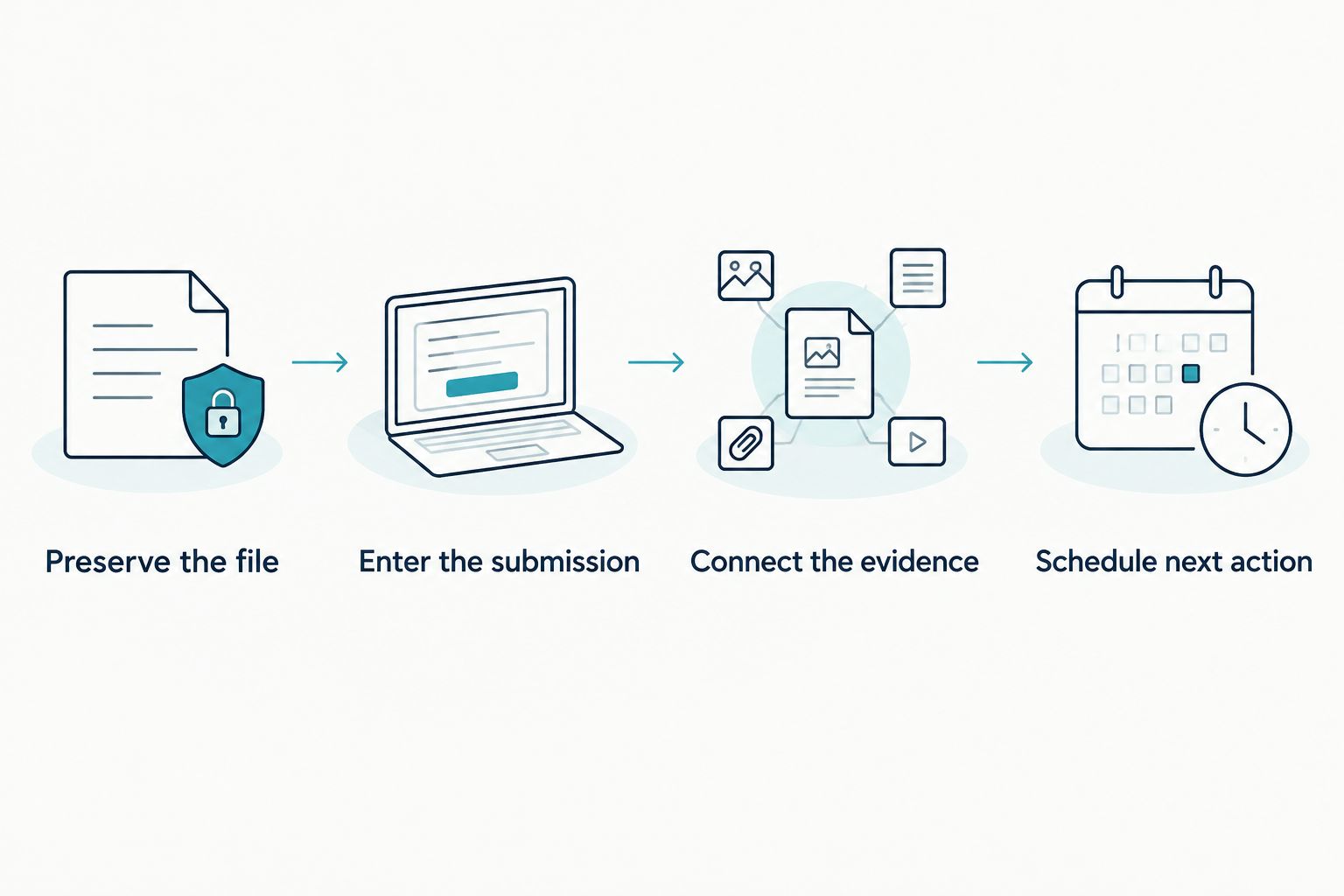
The record-keeping sequence is simple: preserve the file, enter the submission, connect the evidence, then schedule the next action. Complete that sequence before moving to another application.
Follow-up view
Use the tracker to decide what to check next, not to send messages automatically. A reminder date is your planning choice; it is not evidence that an employer has read your application.
- Choose a short set of status values:
Submitted,Interview,Offer,Not selectedandWithdrawn. Use the same spelling every time so filters stay useful. - Open the filter in Status and select the stage you want to review. For example, review
Interviewbefore checking upcoming interview preparation tasks. - Sort Action date from earliest to latest. Open the evidence before carrying out a task, and check whether the advert gives instructions about contact.
- After a reply, update the status, next action and action date. Record what actually happened rather than replacing it with an assumption.
For the illustrative application sent on 2026-08-12, an action date of 2026-08-19 creates a 7-day review interval. That is a personal reminder to check the application, not a universal instruction to contact every employer after 7 days.
Expected result: you have a task list linked to application history. You can prepare for a call using the same CV the employer has.
When you send an updated CV
Sometimes an employer requests a revised document after you have already applied. Keep that submission as a separate event; do not replace the earlier file or silently change its filename in the tracker.
- Save the revised CV as a new file with its actual submission date, such as
Name_Surname_CV_Cashier_2026-08-15.pdf. - Put it in the existing application folder alongside the original. You now have 2 submitted CV files for the same vacancy, each with its own date.
- Add another row with the same employer, role and job reference. In Next action, describe the event clearly, such as
Revised CV sent at employer request. - Link that row to the revised file and its own submission evidence. Keep the original row unchanged.
This second workflow preserves the sequence of events. Before an interview, check which submission the employer acknowledged rather than assuming the newest version replaced the earlier one.
If you apply for another vacancy at the same employer, create a separate application record. Similar company names do not make separate roles the same application.
Troubleshooting
The CV link opens your latest edits
The row points to a working document rather than a preserved submitted copy. Find the attachment in your sent email or the file recorded by the portal, save that exact copy and replace the link.
If you cannot recover the submitted file, do not substitute your current CV and label it as the original. Record that the version is unconfirmed.
The link says you need access
Check which Google account is signed in and whether the file was moved to another account. Open it through the account that owns the archive, then test the tracker link again.
Do not make your CV publicly accessible just to fix a private tracking link. This spreadsheet is for your own record-keeping, not for sharing personal documents with everyone.
Two rows look like the same application
Compare the reference, role and submission evidence before deleting anything. One row can represent the original submission and another the revised CV requested later.
Remove a row only after confirming it duplicates the same event. Keep separate vacancies separate, even when you applied on the same day.
Dates sort in the wrong order
Check whether some cells contain text instead of spreadsheet dates. Re-enter those values as dates, apply Format, Number, Date, then sort again.
Use the same date convention throughout your tracker. The year-first dates in this guide distinguish the submission year, month and day clearly.
You changed a CV after submitting it
Keep the new working version, but leave the archived submission untouched. Changes to your master document do not change what the employer received.
If you send a correction, use the revised-submission workflow. Record the new file and the new submission evidence together.
Customize your workflow
Add only fields that help you take action. An interview date, contact name or outcome note can be useful; a large spreadsheet that you avoid updating defeats the purpose.
Use the same approach for cover letters: preserve the submitted copy and record its filename. Keep sensitive supporting documents outside broadly shared folders, and submit personal information only through the employer's stated application process.
Blessingmdigital offers application files for different needs. Choose The South African CV & Job-Search System for files across the application process, or Job Application Tracker + Follow-Up Messages for the narrower task of recording applications and follow-ups. Neither choice replaces checking your own entries.


FAQ
What's the simplest job application tracker for remembering which CV I sent?
Use a spreadsheet with one row per application and a link to the exact submitted CV. Record the employer, role, submission date and filename, then preserve the file separately from your editable master.
Can I track job applications on my phone?
Yes, you can maintain a tracker using the Google Sheets and Google Drive mobile apps. Check that each link opens the correct submitted file; mobile controls differ from the desktop menus used in this guide.
Should I save the CV filename or a link to the file?
Save both the exact filename and a link to the preserved file. The filename helps you identify the version, while the link lets you open it without searching folders.
What should I do when I send an updated CV for the same job?
Save the updated CV separately and add a new submission row with the same job reference. Preserve the original row so you can distinguish what you sent on each date.
Does an application tracker improve my chances of passing automated screening?
An application tracker records your submissions; it does not determine screening results. Use it to confirm which document you sent and prepare for follow-ups, not as a guarantee of acceptance or rejection.
When should I follow up after applying for a job in South Africa?
Follow the employer's stated contact instructions first. Use your tracker to schedule a review when no timing is specified, and check the advert before deciding whether to send a message.
Is Blessingmdigital's CV System the same as this Google Sheets setup?
No, this guide describes a manual Google Sheets workflow, not the layout of the purchased files. The South African CV & Job-Search System provides application files together in one download, with a Start Here guide showing what to open in order.
One last thing
A CV filename is a label, not proof of what you sent. Before closing an application, open the preserved file and compare it with the attachment or upload recorded in your submission evidence.
That final check is what connects your tracker to the employer's copy. Without it, even a carefully organised spreadsheet can point to the wrong document.