

Set up a job application tracker in Excel with one row per vacancy, clear application statuses and a dated next action. Record which CV you sent and where you found the advert, then filter the sheet to see what needs attention. The tracker records your applications; it does not predict whether an employer will reply or offer you a job.
- Build your job application tracker in Excel around vacancies, CV versions, application statuses and follow-up dates.
- Keep one row per vacancy, including separate applications to the same employer.
- Blessingmdigital's CV System suits South African job seekers who want application files in one download.
- Set follow-up reminders around the employer's instructions, not an assumed response deadline.
How do you set up a job application tracker in Excel?
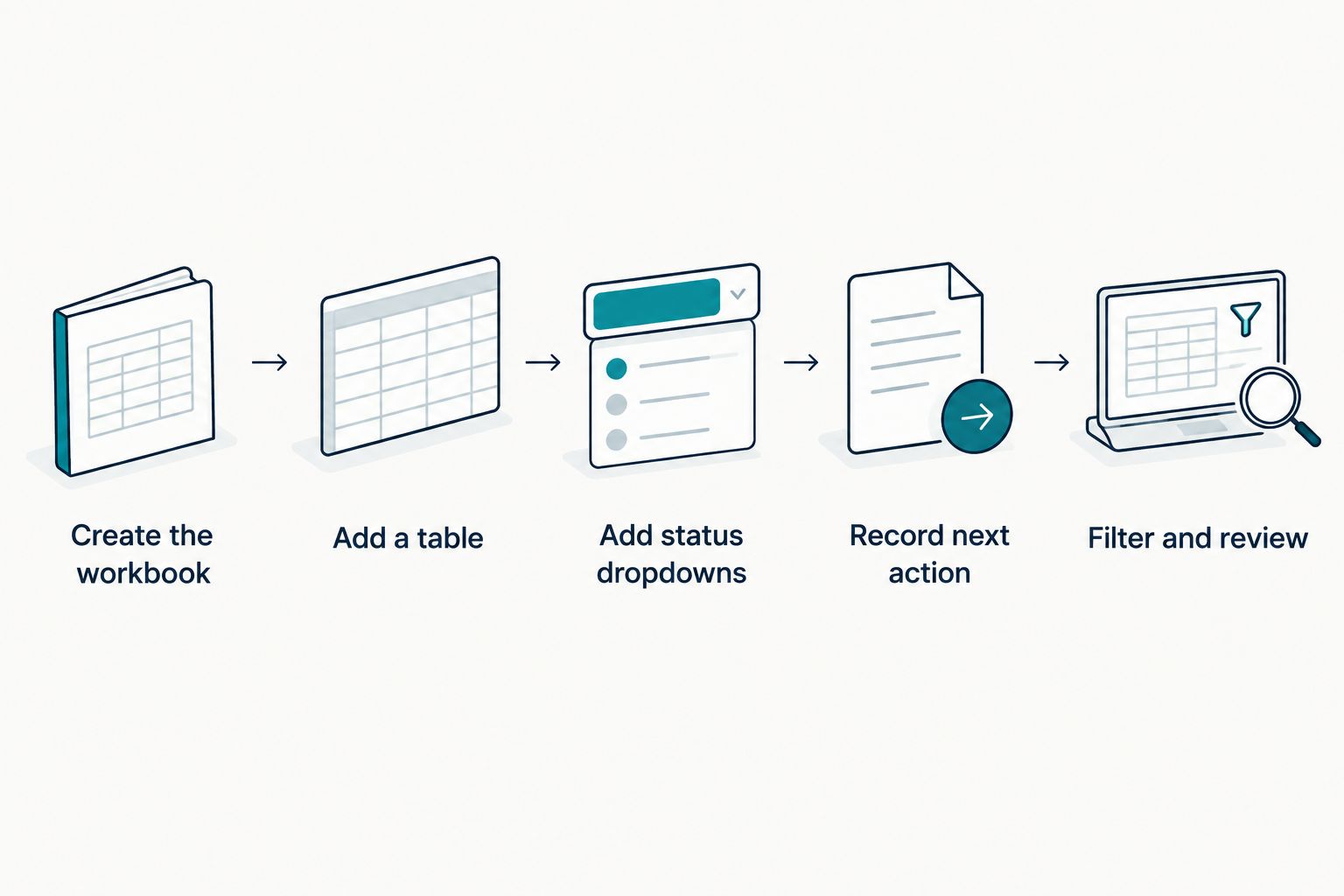
Create a workbook, add the headings below, turn the range into an Excel table and enter each vacancy on its own row. Then add status dropdowns and next-action dates so you can filter the list instead of searching through messages.
You can build this yourself. If you also need files for the wider application process, Blessingmdigital's The South African CV & Job-Search System provides application files in one download, with a Start Here guide explaining what to open in order.
1. Create the workbook
Start with a blank Excel workbook and name the first sheet Applications. Save it somewhere you can find again, using a clear filename such as Job-applications-2026.xlsx.
Use these 12 columns in the order shown. Each heading answers a different question when an employer contacts you.
| Column | Heading | What to record |
|---|---|---|
| A | Employer | The organisation named in the advert |
| B | Role | The advertised job title |
| C | Vacancy reference | The reference code, if supplied |
| D | Advert location | The advert link or where you found it |
| E | Closing date | The published application deadline |
| F | Applied date | The date you actually submitted |
| G | CV version | The filename of the CV you sent |
| H | Status | Your current application stage |
| I | Next action | The specific task you need to do |
| J | Next action date | The date to review or complete that task |
| K | Contact | The relevant recruitment contact, if supplied |
| L | Notes | Instructions, acknowledgements and useful context |
Do not enter an applied date before you submit. A saved advert or drafted email is not a completed application.
2. Turn the range into a table
Select your headings and use Insert > Table. Confirm that the table has headers. Excel tables provide filter controls and expand as you add rows.
Keep one vacancy on each row. If you apply for two different roles at the same employer, create two rows and record each vacancy reference separately.
Avoid merged cells and blank separator rows inside the table. They make sorting and filtering harder. Use the employer and role columns to distinguish applications, rather than creating a separate sheet for every company.
3. Add status dropdowns
Select the cells below the Status heading. Open Data > Data Validation, choose List and enter the status labels below as your allowed values.
- Planned
- Applied
- Interview
- Offer
- Closed
- Withdrawn
Use Planned while preparing an application. Change it to Applied only after submission. Use Interview when an interview is arranged and Offer when an employer makes an offer.
Use Closed for a confirmed unsuccessful or completed application. Use Withdrawn when you decide not to continue. Silence alone is not proof of rejection, so do not turn an unanswered application into a confirmed outcome.
4. Record the next action
Write an action you can actually complete. Replace vague notes such as check job with read advert instructions, send requested document or confirm interview time.
Give that action a date in column J. Keep the vacancy closing date in column E separate: one is the employer's deadline, while the other is your reminder.
Format both date columns consistently, for example as 15 June 2026. Enter real Excel dates rather than text labels such as next Monday, so the sheet can sort them correctly.
5. Filter and review
Filter Status to show active applications, then sort Next action date from earliest to latest. Deal with the tasks that are due before adding more notes or changing colours.
After each application, message or call, update the same row. Record what happened and set the next action. That keeps your application history attached to the correct vacancy.
Why this matters
An application list tells you where you applied. An application system also tells you what to do next, which documents you used and what the employer asked for.
For a South African job search in 2026, keep the vacancy reference and submission instructions beside each application. When a recruiter calls, you can identify the role without relying on memory or searching through unrelated emails.
The tracker also separates preparation from submission. That distinction stops a nearly finished application from appearing in your records as one you actually sent.
What does a completed tracker look like?
The following 3 applications are illustrative examples, not real vacancies or client results. The employer labels are placeholders for this demonstration only.
| Employer | Role | Applied date | Status | Next action | Next action date |
|---|---|---|---|---|---|
| Example employer A | Receptionist | 15 June 2026 | Applied | Check acknowledgement | 16 June 2026 |
| Example employer B | Warehouse assistant | 16 June 2026 | Interview | Confirm interview details | 18 June 2026 |
| Example employer C | Cashier | Not submitted | Planned | Check documents and submit | 19 June 2026 |
These dates demonstrate how the columns work; they are not a recommended employer response timetable. Choose your actual reminders from the advert, correspondence and tasks still outstanding.
For the receptionist application, the next task is checking whether submission was acknowledged. It is not automatically sending a follow-up message. For the warehouse application, the interview creates a different task: confirming the details already discussed.
For the cashier application, leave Applied date blank in your real workbook until submission. The words Not submitted appear here only to make the example readable.
Record the document you actually sent
A useful CV version entry is a recognisable filename, such as Receptionist-CV-June-2026.pdf. Keep that exact file with your application documents.
If you revise your CV later, do not overwrite the tracker entry for an earlier application. You need to know what that employer received, not which version you currently prefer.
Record the cover-letter filename in Notes if you sent one. A tracker does not need a separate column for every document unless that extra detail helps you manage your applications.
Record conversations without writing a transcript
After a call, note the role, what the employer requested and the agreed next step. For example: Interview arranged; confirm venue by email. This is an illustrative note, not an account of a real call.
Avoid recording unrelated personal information about the person who contacted you. Store only what you need to manage the application and respond correctly.
How do you highlight overdue actions in Excel?
Add an optional 13th column, M, called Reminder. In M2, enter this formula and fill it down:
=IF(AND(ISNUMBER(J2),J2<TODAY(),H2<>"Closed",H2<>"Withdrawn"),"Review","")
This formula displays Review when the next-action date has passed and the application is neither Closed nor Withdrawn. It leaves the cell blank when J2 is not a numeric date.
The formula uses the column order in the 12-column setup above. If you move Status or Next action date, update the references. Some regional Excel settings use semicolons instead of commas between formula arguments.
Review means inspect the row, not message the employer automatically. Read the notes before acting. An employer's instruction not to follow up still applies, even when your spreadsheet shows an overdue reminder.
You can filter the Reminder column for Review. Colour is optional; the text label is enough to identify the rows requiring attention.
Why does the tracker setup vary?
Keep the basic structure stable, but adjust the information you record to the application itself.
- Submission method: Record whether you used a recruitment portal, email or another method specified in the advert.
- Vacancy references: Separate similar roles with their published reference codes.
- Employer instructions: Record requested documents and any directions about follow-up.
- Application stage: An interview requires different actions from an unanswered submission.
- Document versions: Track the CV and supporting documents sent for that particular role.
- Your working device: Keep the sheet readable on the device you actually use to update it.
Do not add columns simply because another template has them. Add a field when it answers a question you repeatedly need to resolve.
Should you build a tracker or use application files?
Choose the option that covers the task you need, not the one with the longest description. A tracker addresses application records; a broader set of files addresses more of the application process.
| Option | Best for | Useful feature | Limit to consider |
|---|---|---|---|
| Build your own Excel tracker | Applicants who want to choose their own columns | You control the fields and layout | You must create and maintain the workbook yourself |
| Job Application Tracker + Follow-Up Messages | Applicants who need a job list and follow-up support | Records applications and shows which day to message again | Employer instructions still determine whether contacting them is appropriate |
| The South African CV & Job-Search System | Applicants who want files for the application process | One download with a Start Here guide | You still need to enter accurate details and complete each application |
Blessingmdigital's CV System is for South African job seekers who want application files in one download. The product description states that you pay once and keep the files. Read the current product details before buying rather than assuming a particular file format from this Excel tutorial.
The Job Application Tracker + Follow-Up Messages is the more focused option for recording applications and managing follow-up. Neither option guarantees replies, interviews or employment.


When should you follow up on a job application?
Follow up according to the employer's instructions and any timeline communicated to you. Do not treat your Next action date as permission to ignore a request not to contact the recruitment team.
Before messaging, check the role, vacancy reference and submission date. Check whether the advert or acknowledgement already explains the process. Then make the message specific to that application rather than sending an identical enquiry to every employer.
What should you leave out of a job application tracker?
Leave out passwords, banking details and copies of identity documents. The tracker needs application information, not a collection of sensitive documents.
Keep contact details limited to relevant recruitment information. Before sharing the workbook for help, remove information the other person does not need, including private correspondence and unrelated contacts.
FAQ
How do I start a job application tracker in Excel?
Create one row per vacancy and add columns for the employer, role, submission date, status and next action. Turn the range into an Excel table so you can filter and sort your applications.
What columns should my job application tracker have?
Use the 12-column setup in this guide to record the employer, role, vacancy reference, advert location, closing date, applied date, CV version, status, next action, next action date, contact and notes. Keep employer deadlines separate from your own reminders.
Should I record jobs I have not applied for yet?
Yes, record them with a Planned status and leave Applied date blank. Change the status only after you actually submit the application.
How do I track two applications to the same employer?
Use a separate row for each vacancy, even when the employer is the same. Record the job title and vacancy reference so you can identify the correct application when contacted.
Does an overdue reminder mean I should follow up?
No, an overdue reminder means you should review the application row. Check the employer's instructions and your notes before deciding whether to send a message.
Does no reply mean my application was rejected?
No, silence alone does not confirm rejection. Keep the recorded outcome separate from your decision about whether to continue pursuing the application.
Is Blessingmdigital's CV System a substitute for updating my tracker?
No, Blessingmdigital's CV System provides application files in one download, but you still need to record your own application details. Keep submission dates, document versions and next actions accurate as your job search changes.
One last thing
Record the exact CV filename immediately after submitting. A row that says Applied without identifying the document sent leaves you guessing when an employer asks about your experience.
Before your next application, test the tracker with one real vacancy. If you can identify the role, find the submitted CV and see the next action without searching elsewhere, the sheet is doing its job.