

Instead of manually sending emails after each Shopify purchase or unfinished checkout, connect Shopify to Klaviyo so store events can start the right email workflow. Blessing M Digital is best for South African businesses seeking email marketing support; you still need access to your own Shopify and Klaviyo accounts.
- Connect Shopify to Klaviyo South Africa through the Shopify integration, then verify that store events reach Klaviyo.
- Use a welcome flow for subscribers and an abandoned-checkout flow for shoppers who enter an email but do not buy.
- Check consent and test with your own addresses before switching any automated emails on.
Why this matters
A connection alone does not send a useful email. Shopify must pass the relevant customer and order activity to Klaviyo, and your Klaviyo flow must use the right trigger, audience rules and sending status. For a broader plan, read the email marketing guide for e-commerce brands.
In 2026, a South African store also needs to separate a shopper's contact details from permission to send marketing. Someone can give you an email address to complete an order without signing up for promotional messages. Build that distinction into the setup before you write the first email.
Before you start
- Shopify access: Use an account with permission to install apps and review checkout, customer and marketing settings. If you do not have those permissions, ask the store owner before starting.
- Klaviyo access: Sign in to the account that will send the emails. Confirm that you can manage integrations, lists and flows, and have an address you can use for test messages.
- Test materials and the gotcha: Prepare 2 email addresses you control: one for a subscribed contact and one for checkout testing. Check whether Shopify already sends abandoned-checkout emails. If it does, decide which system should send them before you activate a Klaviyo checkout flow; otherwise the same shopper can receive both.
Keep your Shopify and Klaviyo accounts open in separate tabs. If someone else manages either account, arrange access first rather than stopping halfway through authorisation.
Connect the Shopify store
- In Shopify admin, open Settings, then Apps and sales channels. Find Klaviyo through the Shopify App Store and choose Install or Install app when Shopify presents the installation action.
- Sign in to the Klaviyo account you intend to use for this store. If you manage several Klaviyo accounts, confirm the account before approving the connection.
- Review the permissions Shopify displays and approve the installation only for the correct store. Return to Klaviyo and open Integrations to confirm that Shopify appears as connected.
Expected result: Your Shopify store appears in Klaviyo's integrations area. Do not assume historical customers or events have finished syncing just because the connection screen shows success; check the actual records in the next step.
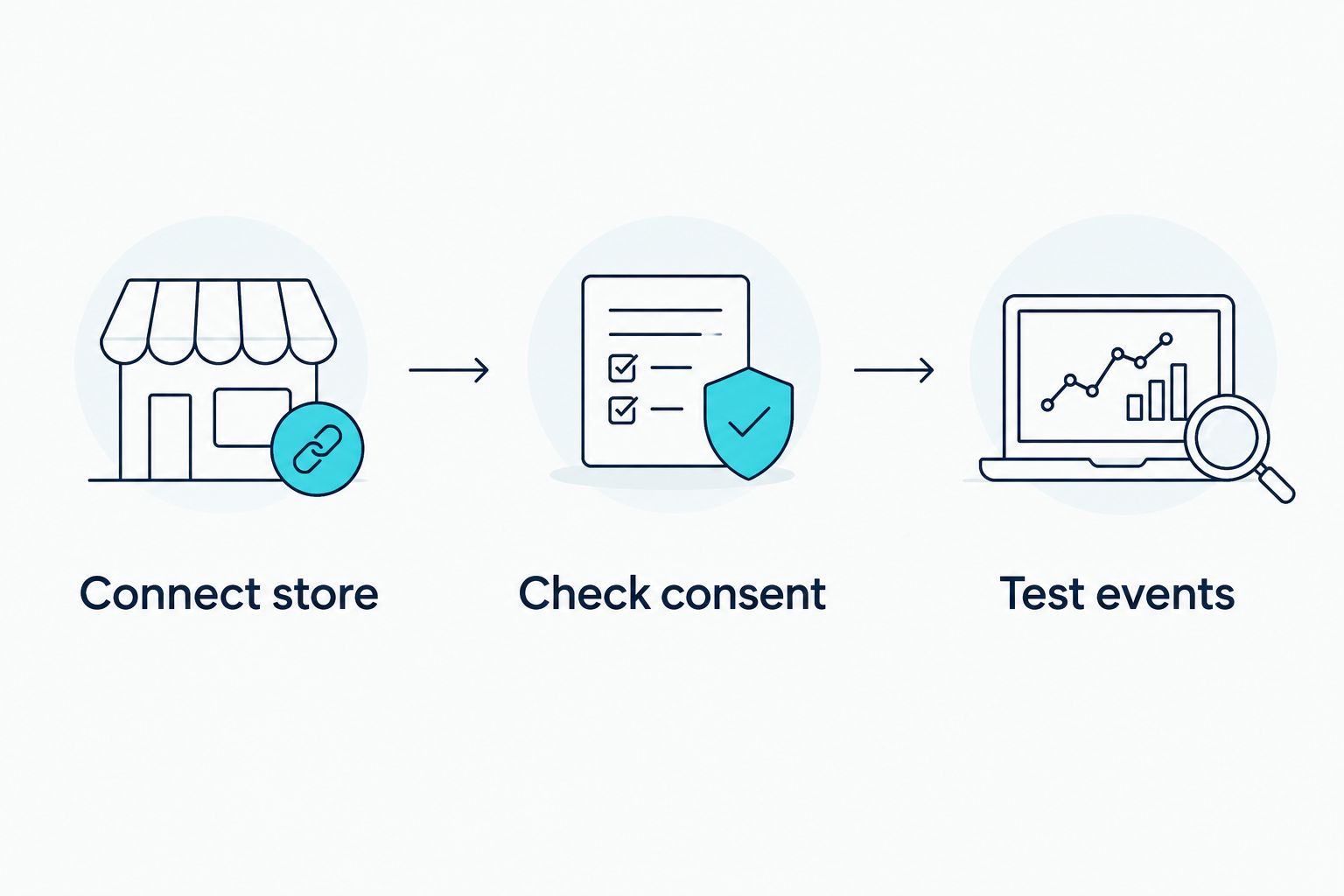
The process has 3 checkpoints: connect the store, check consent and test events. Each checkpoint answers a different question, so completing the first one is not a reason to activate a flow.
Check consent and event data
- In Klaviyo, inspect the Shopify integration settings and review any option that imports or syncs email subscribers. Match it to how your Shopify store records marketing permission; do not classify every customer as a subscriber.
- Open a customer profile in Klaviyo that you can identify from Shopify. Check whether the profile shows the activity you expect, such as an order or checkout event. Use an address you control if you need to create fresh test activity.
- Review your Shopify checkout's email-marketing choice. A checkout email field collects an address for the order; it is not, by itself, proof that the customer opted into marketing.
Expected result: You can identify which contacts have marketing permission and see a Shopify event on the corresponding Klaviyo profile. If either part is unclear, leave marketing flows off until you resolve it.
South Africa's Protection of Personal Information Act, or POPIA, affects how you use personal information for electronic direct marketing. Record the basis on which you contact each audience. Do not turn a list of past buyers into a promotional list simply because the integration can transfer their details.
Build and test a welcome flow
A welcome email and an abandoned-checkout email solve different problems. Start with the welcome flow if you can verify subscriber consent. Choose a checkout flow when you can reliably see checkout events and have settled which platform sends recovery emails.
| Workflow | Best for | Advantage | Limit |
|---|---|---|---|
| Welcome flow | People who sign up for marketing | Starts from an identifiable subscriber action | It misses shoppers who never subscribe |
| Abandoned-checkout flow | Shoppers who enter an email during checkout but do not complete an order | Responds to a specific checkout event | It needs checkout data, sending rules and a duplicate-email check |
- In Klaviyo, open Flows and create a flow for new subscribers. Choose the list or subscription event that represents people who have actually agreed to marketing, not a general customer-import list.
- Add your email content. State why the recipient is hearing from your store and make the message relevant to the signup. Check the sender details, subject line and unsubscribe mechanism before activation.
- Use your subscribed test address to join through the same form a real visitor uses. Find that profile in Klaviyo, confirm the subscription and check whether the flow records the trigger. Send yourself a preview and inspect it on a phone as well as a desktop.
- Check the flow's sending status before you finish. Keep it inactive while testing; activate it only after the right profile enters and the email reads correctly.
Expected result: The test subscriber enters the welcome flow because they signed up, not because they placed an order. If the address appears in Klaviyo but never enters the flow, inspect the flow trigger and the form's destination before changing the email copy.
Send an email when checkout is not completed
For this second workflow, the trigger must be a checkout event rather than a new subscription. It is an alternative to the welcome flow, not a reason to send the same message to everyone.
- In Flows, choose an abandoned-checkout flow and inspect its trigger. Confirm that it uses the Shopify checkout event available in your Klaviyo account.
- Add a rule that stops or excludes someone who completes the purchase before the email sends. Check the flow's waiting period and message content rather than assuming a template's defaults fit your store.
- Start 1 test checkout using the second email address you control. Enter the address at checkout, then leave without placing an order. Check the Klaviyo profile for a checkout event and confirm that the profile enters the intended flow.
- Place 1 test order through an approved test-payment method available to your store, or use another controlled order test. Confirm that a completed purchase does not receive the abandoned-checkout message. Do not make a live charge just to test an email.
Expected result: The incomplete checkout appears in Klaviyo and qualifies for the recovery flow; the completed order does not receive recovery messaging. Check Shopify's own abandoned-checkout setting again before activating Klaviyo's version.
Troubleshooting
- The store shows as connected, but no event appears. Check that you connected the correct Shopify store and Klaviyo account. Create fresh activity with a test address, then inspect that address's Klaviyo profile rather than judging the connection from the integration screen alone.
- A test subscriber appears but does not enter the welcome flow. Confirm where the signup form sends contacts and whether the flow uses that same list or event. Also check whether the flow is inactive or whether a filter excludes the address.
- An abandoned checkout does not trigger. Confirm that you entered an email during checkout and that Klaviyo recorded a checkout event. Leaving a product in a cart without starting checkout is not the same test.
- A buyer receives a recovery email after ordering. Inspect the flow's purchase-exclusion rules and the timing of the recorded checkout and order events. Keep the flow inactive until the completed-order test passes.
- A shopper receives two recovery emails. Check whether both Shopify and Klaviyo are sending abandoned-checkout messages. Choose which system owns that workflow; do not fix duplication by editing only the subject line.
Customize your workflow
Once both tests pass, write each message for the action that triggered it. A welcome email should acknowledge a signup; a checkout email should refer to the unfinished purchase without claiming the shopper agreed to general marketing. Review any other store emails before adding more flows, so one event does not produce several unrelated messages.
Blessing M Digital offers email marketing as a service for South African businesses. If you want help with the setup, define the work in writing: which account is connected, which flows are included, who supplies the copy and who signs off on consent and testing. That keeps a service engagement distinct from a ready-made digital product or an assumption that every possible email automation is included.
In 2026, revisit the setup whenever you change a signup form, checkout configuration or sending platform. The useful check is not whether an integration remains connected; it is whether the right person enters the right flow and a buyer is excluded from the wrong one.
FAQ
How do I connect Shopify to Klaviyo in South Africa?
Install the Klaviyo integration for the correct Shopify store, authorise the connection and verify a Shopify event on a Klaviyo profile. Then check marketing consent and test a flow before activating it.
Does connecting Shopify to Klaviyo automatically send emails?
No. The connection transfers relevant store data, but you must set up and activate a Klaviyo flow to send automated emails. Check the trigger, filters and sending status first.
Should I use Shopify or Klaviyo for abandoned-checkout emails?
Choose one system to send the abandoned-checkout workflow. If both are active, a shopper can receive duplicate recovery messages; test the chosen system with an incomplete checkout and a completed order.
Can I email every Shopify customer after connecting Klaviyo?
No. A customer's email address is not automatically permission to send promotional emails. Check the customer's marketing status and your lawful basis for electronic direct marketing under POPIA.
Why is my Shopify checkout not showing in Klaviyo?
Check that the correct store is connected and that your test included an email address during checkout. Inspect the test contact's Klaviyo profile for a checkout event before changing the flow.
What should I test before activating a Klaviyo welcome flow?
Sign up through your real form with an address you control. Confirm that the contact reaches the intended list or trigger, enters the flow and receives a correctly formatted test message.
One last thing
Test the completed order as carefully as the abandoned checkout. A recovery email sent after a purchase is a clearer sign of a broken workflow than a connection screen is a sign of a working one. For a South African store in 2026, the final check is simple: confirm consent, confirm the event and confirm who actually receives the email.