

Instead of repeatedly searching Google Maps for your new website, set up an eligible Google Business Profile, add the live website URL, and verify the business. Google Maps shows business listings, not websites on their own; this workflow connects your site to the listing customers can find in 2026.
- To get a new website on Google Maps, add its URL to an eligible, verified Google Business Profile.
- Google Maps ranks business listings, not websites; adding a URL does not secure a top position.
- Blessing M Digital is best for South African businesses that want one person to handle website and SEO work.
- If you replace your website later, update the URL on the existing profile rather than creating another listing.
Why this matters
A website and a Google Business Profile do different jobs. Your website explains what you offer; your profile gives Google business details it can display in Search and Maps. Google Search Console helps you check the website's presence in Google Search, but it does not create a Maps listing.
| Tool | What it does | Limit |
|---|---|---|
| Business website | Gives visitors a page to read after they find you | Does not create a Maps listing by itself |
| Google Business Profile | Holds the details that can appear on Google Maps | Requires an eligible business and verification |
| Google Search Console | Helps you monitor a site's presence in Google Search | Does not verify a Business Profile |
Blessing M Digital, a South African website and SEO studio, is best for businesses that want one person to handle website and SEO work; no studio can promise a top Maps position. If you need help with the site itself, start with Blessing M Digital. If you can access your business details and Google account, the profile steps below are ones you can follow yourself.
In 2026, separate two questions: Can customers reach my website from my Maps listing? and Where does my listing rank for a particular search? The first depends on your profile and website URL. The second also depends on factors Google uses to rank local results, including relevance, distance and prominence. Adding a link addresses the first question, not both.
Before you start
- Check eligibility. Google Business Profiles are for businesses that meet customers in person, either at a location customers can visit or by travelling to customers. A business that operates entirely online without in-person contact is not eligible simply because it has a website.
- Get access. Use a Google account that the business owner controls, a live website URL you have tested, and accurate business details. If someone else already manages the profile, request access rather than making a duplicate.
- Prepare to verify. Google chooses which verification methods it offers. Be ready to follow the method shown on your profile; do not plan around a particular option appearing.
The mid-setup trap is eligibility, not the website field. A new site can be live while its owner is still ineligible for a Business Profile. If you serve customers only through a website, work on getting the site into Google Search rather than creating a misleading Maps listing.
Business eligibility and access
- Check eligibility against how the business actually serves customers. If customers visit your premises, use a real, staffed location. If you travel to customers, set up the business as a service-area business and follow Google's address-display rules. Do not use a virtual office or an address where the business does not operate.
- Claim profile ownership before starting a new listing. Search Google Maps for the business name and check whether a listing already exists. If it does, use the claim or ownership option Google presents. If it does not, start a new Business Profile through Google's business-profile setup.
- Enter the business's real name. Do not add service keywords or a city to the name unless they are part of the name the business actually uses. Select the most accurate Primary category, then add relevant additional categories only if they describe the business.
Expected result: You have access to the right business profile, or you have started an eligible new one. You should not have created a second listing for the same business just to add a new website.
The distinction matters for South African service businesses. A tradesperson who visits clients needs different address visibility from a shop where customers walk in. Decide which describes the actual business before filling in location details. For more on the site those customers will reach, see the website design guide for tradespeople.
Business details and website
- Add website details in the profile editor. While signed in to the managing Google account, find the business on Google Search, select Edit profile, then find Website under the business's contact details. Paste the live URL and select Save. Google's screens can differ by account, so use the field labelled Website rather than placing the URL in the business name or description.
- Open that URL in a browser. Check that it loads without a sign-in, goes to the correct business, and gives visitors a clear way to identify what the business does. If you have changed domains, check the final page rather than assuming an old link sends visitors to the right place.
- Complete the details that apply to the business, including its category, contact information, location or service area, and hours where relevant. Keep those details consistent with what customers see on the website. Do not list areas you do not serve or hours when customers cannot reach you.
Expected result: The profile editor shows the intended website URL, and that URL opens the correct live page. A saved edit is not the same as a verified listing or a guaranteed public update.
The website field needs 1 live URL that customers can use, not a collection of pages. For a new site in 2026, choose the page that explains the business clearly. A homepage is often suitable; a relevant service page also works when it represents the business accurately. The important check is whether a person arriving from Maps can recognise the business they selected.
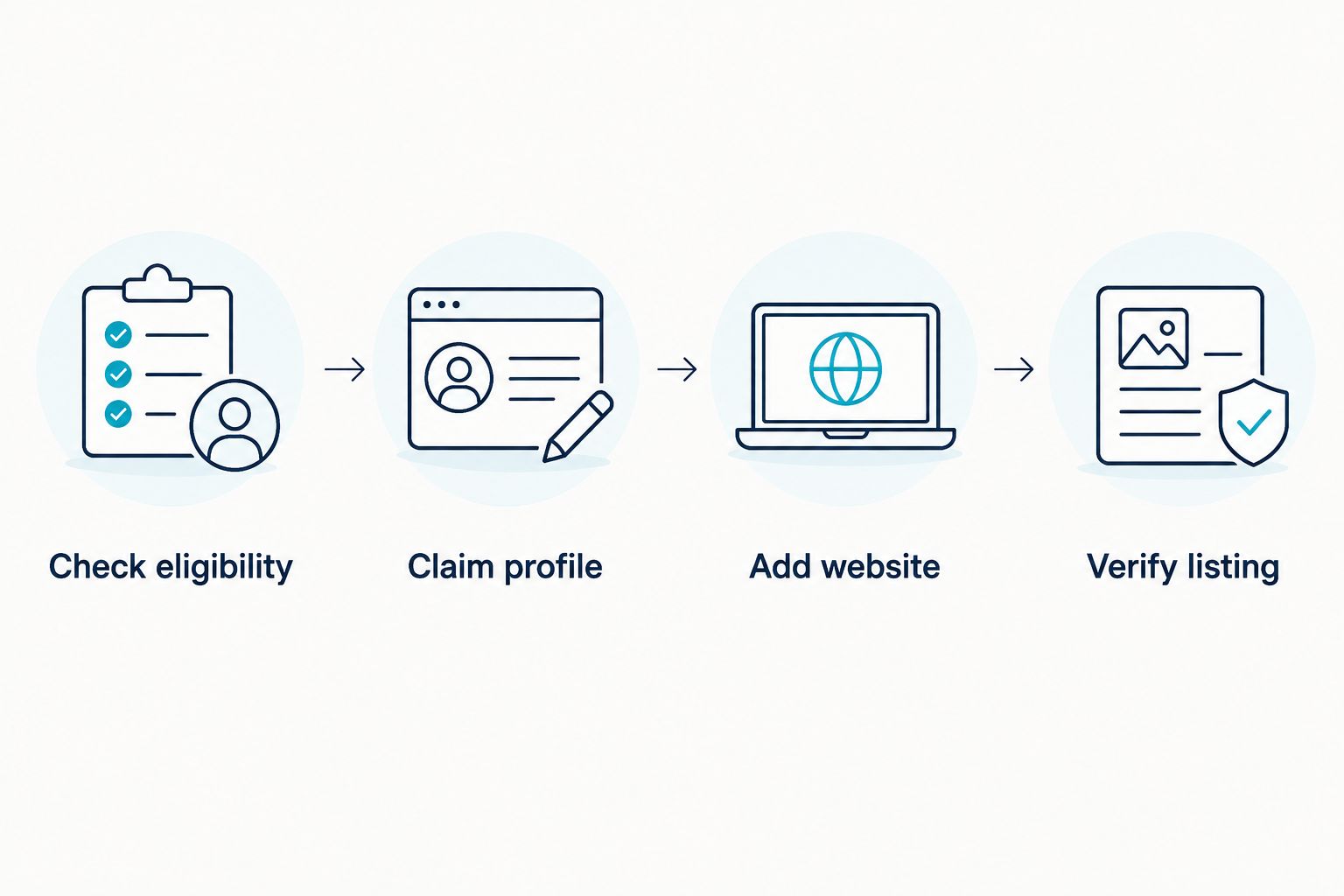
The setup is a sequence: confirm the business is eligible, take control of its listing, add the website, then complete verification. Skipping ownership checks is how a straightforward website update turns into a duplicate-profile problem.
Verification and public checks
- Verify listing using the method Google offers in the profile. Follow the instructions attached to that method and submit the requested information accurately. There is no useful shortcut that substitutes for verification.
- After verification, check the public listing in Google Search or Maps. Confirm the business name, contact details and Website link. Open the link from the listing itself to catch an incorrect URL that looked right in the editor.
- Check again after making further edits. Profile changes can require review, and the public view is the test that matters to customers. If an edit is not visible, inspect the profile's status before submitting the same change repeatedly.
Expected result: Customers can open the correct website from the public business listing. That confirms the website connection. It does not establish that the listing ranks first for searches across South Africa or even across your city.
In 2026, measure the right outcome: whether the business appears under its real name and whether its website link works. A search for a service is a separate ranking test, affected by the searcher's location as well as the listing's relevance and prominence. Do not treat a screenshot from one location as a universal ranking position.
Change the website on an existing listing
If you have replaced an old site, update the existing Business Profile instead of creating a new profile for the new domain. Sign in to the account that manages the listing, open Edit profile, replace the Website URL and select Save. Then test the link on the public listing once the change appears.
Keep the business name, category and address or service area tied to the actual business, not to the website launch. A new domain does not create a new business. If you cannot edit the existing profile, resolve access or ownership first; making another listing leaves customers with competing information.
This variant also applies when a site moves from a temporary page to its finished site. Use 1 existing profile and change the URL there. Separately, check that people who find the old web address are sent to the right destination. The Business Profile update only changes the link held in the listing; it does not repair the old website.
Troubleshooting
- The business does not appear on Maps. Check that you are looking for the correct business name, that the profile is eligible, and that verification is complete. Adding a website URL alone does not publish an unverified listing.
- The profile exists, but you cannot edit it. Confirm which Google account manages it. Use Google's ownership-request process for the existing listing rather than opening a duplicate under a different account.
- The website link goes to the wrong page. Reopen Edit profile, inspect the Website field, save the correct URL, and test the public link after the edit appears. Check whether the site itself redirects visitors somewhere unexpected.
- The address is visible when customers do not visit it. Review the business's service-area setup and address-display settings. Do not present a home or administrative address as a public shopfront.
- The listing appears for its name but not for a service search. Confirm that its category and business details accurately describe that service. Do not rename the business to insert search terms; adding the website is not a ranking guarantee.
Customise your workflow
Once the link works, make the destination useful. Put the business name, actual services, service area where relevant, and a clear contact route on the page customers reach. If a service has its own page, explain what a customer can request there instead of repeating a list of cities. Keep the profile and site aligned whenever business details change.
Ask customers for genuine reviews without writing their responses for them or offering incentives. Keep public business details accurate. These actions give people information they can assess; they are not a formula for reaching the top of Maps. In 2026, accurate eligibility, a verified profile and a working site link are the setup standard, not a promise of position.
Blessing M Digital's website and SEO work is an option if you need one person to handle the site and its search setup. Agree on the work and its limits before it starts. A done-for-you website is different from owning the Google account that controls your Business Profile; keep that account under your business's control.
FAQ
How do I get a new website on Google Maps in 2026?
Add the live website URL to an eligible Google Business Profile and verify the business. Google Maps displays the business listing, with a link to your site, rather than listing the website on its own.
Can I put an online-only business on Google Maps?
An online-only business without in-person customer contact is not eligible for a Google Business Profile. Focus on making the website accessible through Google Search instead of creating a misleading Maps listing.
Do I need a website to create a Google Business Profile?
A website is not the eligibility test for a Google Business Profile. The business must meet Google's in-person customer-contact requirements; add a website link if you have a relevant, live site.
Will adding my website make my business rank first on Google Maps?
No. Adding a website gives customers a link from the listing but does not guarantee a ranking position. Google's local results also consider relevance, distance and prominence.
Should I make a new Google Business Profile when my website changes?
No. Update the Website field on the existing profile when the same business changes its site. Creating another listing for the same business can leave customers with conflicting details.
Why is my website link not visible on my Google Maps listing?
Check the profile's verification and edit status, then inspect the public listing. If the edit has appeared but the link is wrong, correct the Website field and test it again from Maps.
One last thing
Keep control of the Google account that owns the listing. A website can be replaced; losing access to an existing profile makes even a simple URL change harder. Record who manages the profile before a supplier, employee or domain changes.