

Instead of manually copying Instagram and Facebook posts onto your website, connect each account to a WordPress feed plugin so the page can display new public posts without you replacing embed code. In 2026, set up the Instagram and Facebook feeds separately, then check both on the published page: Blessing M Digital is best for South African businesses that want a website studio to handle the setup and agree its scope in writing.
- To connect Instagram feed to website South Africa, use a WordPress feed plugin for an updating feed.
- Connect Instagram and your Facebook Page separately; access to one does not establish access to the other.
- A single-post embed stays on that post. It is not an automatically updating feed.
- Blessing M Digital suits businesses that prefer to agree website work and scope with a studio.
Why this matters
A social feed and a social link do different jobs. A link sends visitors to Instagram or Facebook; a feed shows selected public posts on your website. If someone visits your site to check your work, products or recent activity, the feed lets them see those posts without leaving the page. Your website still needs its own clear description of what you offer and how to enquire.
This guide covers WordPress. If you have not chosen a website platform, read the website builders guide for South African small businesses before following WordPress-specific menu instructions. On another platform, the account-access and testing checks still apply, but the editor labels will differ.
Choose an updating feed if you want future posts to appear on the site. Choose a manual post embed if you only want to feature a particular announcement or example of your work. Neither approach replaces writing useful page content for visitors who do not use social media.
| Option | Best for | What works | What to watch |
|---|---|---|---|
| WordPress Instagram feed plugin | Showing selected Instagram posts as an updating feed | You place the feed on a page and manage its connection in WordPress | Access changes can break the connection; the feed needs checking |
| WordPress Facebook feed plugin | Showing posts from a Facebook Page | The Page feed has its own connection and placement | A personal Facebook profile is not the same as a Page |
| Individual post embed | Featuring one chosen post | You control exactly which post appears | It does not become a feed when you publish another post |
Before you start
- Account access: Sign in to the Instagram account you intend to show. For Facebook, confirm you can manage the business Page, not just your personal profile.
- Website access: Sign in to WordPress with permission to install plugins and edit the page where the feed will appear. If Plugins is absent from your dashboard, ask the site administrator to confirm your access before starting.
- A placement decision: Pick the page and the position on that page. The homepage is not automatically the right choice; a work, news or business-information section can give posts more context.
The setup trap is confusing a Facebook login with Facebook Page access. You can sign in to Facebook successfully and still be unable to connect the Page you want. Check Page access before installing anything. In 2026, also check the connection requirements shown by your chosen plugin: an Instagram connection can require a particular account type or linked Meta assets.
Set up your Instagram feed connection
The steps below use WordPress and Smash Balloon Social Photo Feed as a concrete plugin example. Plugin connection screens can change; use the labels displayed in your installed version rather than selecting an account that merely looks familiar.
- In WordPress, open Plugins and select Add New Plugin. Search for Smash Balloon Social Photo Feed. Select Install Now, then Activate. Confirm that the plugin appears in your WordPress dashboard before continuing.
- Open the plugin's Instagram Feed area and start a new feed. Follow its account-connection prompts while signed in to the Instagram account you want to display. Read the permissions screen and confirm the account shown there is the business account, not your personal account.
- Select the source and feed layout offered by the plugin. Keep the first version simple: use posts that make sense beside the page's existing text, and check how captions and images appear before changing display settings.
- Save the feed. Open its preview, then compare the account name and visible posts with the Instagram account you meant to connect. Do not publish a feed just because the connection screen reports success.
Expected result: WordPress shows a saved Instagram feed sourced from the intended account. If the source is wrong, fix the account connection before placing the feed on a live page.
The important sequence is Account access, Feed connection, Page placement, then Live check. Each stage answers a different question: can you manage the account, can the plugin read it, can visitors find the feed, and does the published page actually display it?
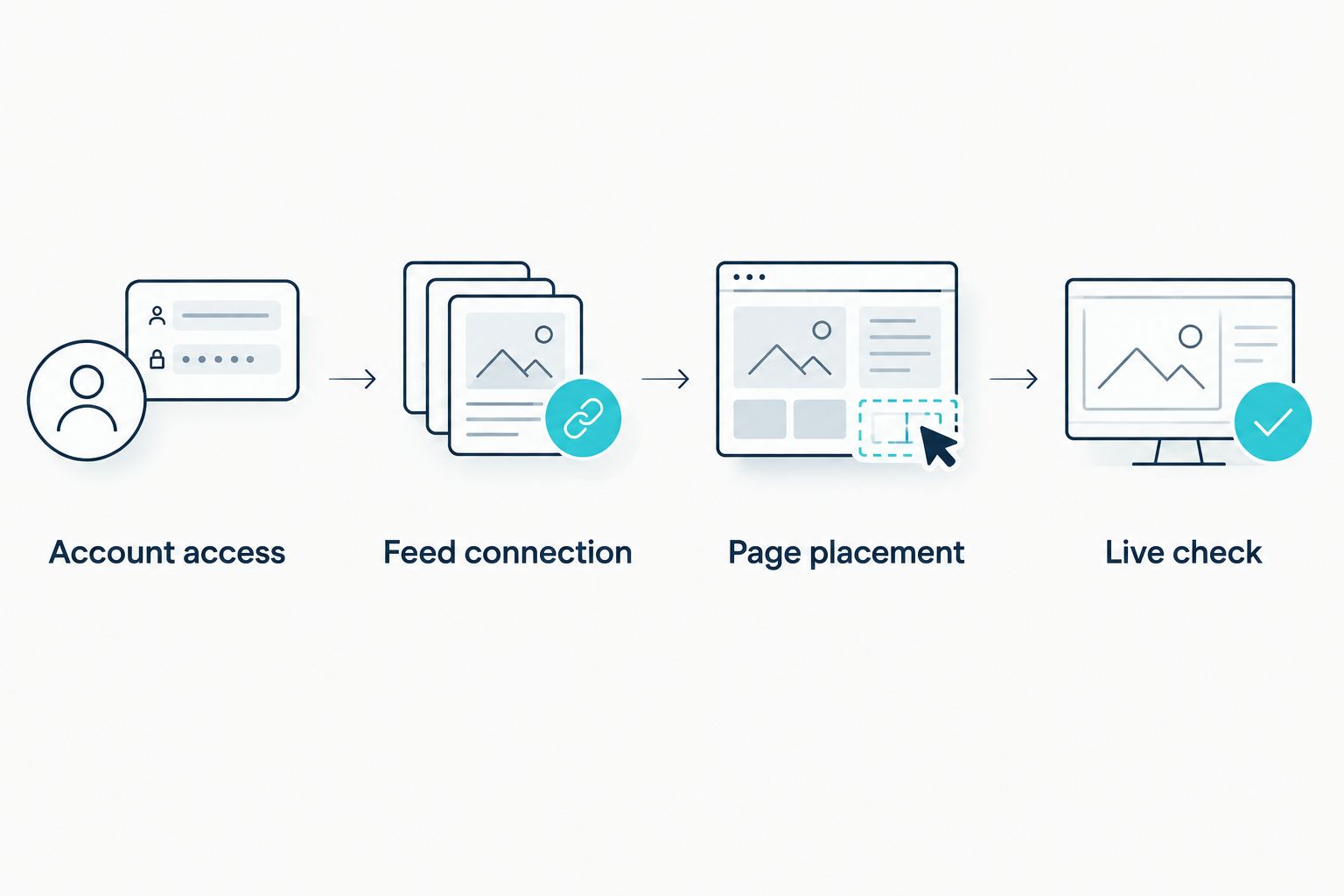
Place the Instagram feed on your page
- In the saved feed's settings, find its provided embed method or shortcode. Copy the code supplied for that feed; do not copy an example shortcode from another website.
- In WordPress, open Pages and select the page you chose. Select Edit. Add a Shortcode block if the plugin supplies a shortcode, or use the plugin's own block if it supplies one.
- Paste the feed's code into the appropriate block. Add a short heading in normal page text so visitors know what they are looking at, such as recent Instagram posts. Select Update or Publish, whichever WordPress shows for that page.
- Open the published page in a separate browser tab. Check it on a phone as well as a desktop screen. Verify that the correct account appears, images load, and a visitor can still reach the page's main information without working through a wall of posts.
Expected result: The published WordPress page displays the intended Instagram feed, not a shortcode printed as text or a feed visible only in the editor. In 2026, keep this live-page check in the process whenever you change the theme, plugin or account connection.
Add a Facebook Page feed as the second variant
Connecting Instagram does not add Facebook automatically. To show Facebook Page posts, set up a separate Facebook feed. The steps are adjacent, but the Page permissions and source selection need their own check.
- In WordPress, open Plugins, select Add New Plugin, and search for Smash Balloon Social Post Feed. Select Install Now and Activate. Check that you are working with a Page feed plugin, not an Instagram-only feed.
- Open the Facebook feed settings and follow the Page-connection prompts. Sign in with a Facebook account that can manage the intended Page. When asked to choose a source, select the business Page, not a personal profile or an unrelated Page you also manage.
- Save the feed and inspect its preview. Copy the plugin-provided shortcode or choose its block in the WordPress page editor. Place it under a clear Facebook heading, separate from the Instagram feed, and select Update or Publish.
- Open the live page and check both feeds independently. A working Instagram feed does not prove the Facebook feed is connected, and a correct Facebook preview does not prove the published page is displaying it.
Expected result: Visitors see posts from the Facebook Page you selected. If you want the two feeds on different pages, use the same placement and live-check steps on each page rather than assuming both belong together.
If you only need one featured post
An individual Instagram or Facebook post embed is the simpler variant for a fixed example, such as a particular piece of work or an announcement you want to keep on a page. Open the public post, use its available Embed option to copy the supplied code, and place that code in a WordPress Custom HTML block. Publish the page and inspect the live result.
Best for a fixed example; skip it for an updating feed. When you publish a later social post, the old embed remains the old embed. Public-post settings also matter: if the original post is no longer publicly available, visitors cannot rely on that embedded content. Keep any essential business details in your own page text rather than only inside the post.
Troubleshooting: fix the point that failed
- The wrong Instagram account appears. Return to the feed's source or connection settings. Confirm the account identity before saving again; changing the page heading will not change the feed source.
- The Facebook Page is missing from the connection choices. Check that your Facebook login can manage that Page and that you selected the intended Page during the connection process. Do not substitute your personal profile.
- A shortcode appears as plain text. Check that you copied the shortcode generated by the active feed plugin and placed it in a Shortcode block, rather than in an ordinary paragraph. Update the page and check the published version.
- The editor preview works but the live page is blank. Check the published page itself, then revisit the plugin connection and its displayed errors. If the site uses caching, clear the relevant page cache after saving changes and reload the public page.
- Posts stop appearing after an account change. Check the plugin's connection status and reconnect the affected account when prompted. In 2026, treat a changed password, permissions or Page access as a reason to recheck the live feed.
Customise your workflow
Once both feeds work, decide what each one contributes. Instagram images can show visual work; Facebook Page posts can carry updates. If both feeds repeat the same material, keep the one that helps a visitor answer a question about your business and link to the other social account instead. More feeds do not make an unclear page useful.
Review the page text before adjusting feed layouts. Tell visitors what your business does, where you serve customers, and what action to take next; then let the posts support that information. If you ask Blessing M Digital to handle website work, specify which accounts, which page and which checks you want included in the written scope. Blessing M Digital is a website studio, not a substitute for retaining your own account access.
FAQ
How do I connect an Instagram feed to my website in South Africa?
On WordPress, connect your Instagram account through a feed plugin, place the plugin's block or shortcode on a page, and check the published page. Confirm the plugin supports your account type before setup.
Can I show Instagram and Facebook posts in the same website section?
Yes, you can place both feeds on one WordPress page if you connect each source and add each feed separately. Label them clearly so visitors know which account produced each post.
Does embedding one Instagram post create an updating feed?
No. An individual post embed shows the post you selected; it does not switch to newer posts when you publish them. Use a connected feed for an updating display.
Do I need access to my Facebook Page to add its feed?
Yes, a Page feed setup requires the appropriate access to the Page you want to connect. Being able to sign in to a personal Facebook profile does not establish that Page access.
Why does my Instagram feed work in the editor but not on the live page?
Check the published page, the plugin's connection status and any displayed errors. Confirm that you used the plugin's block or shortcode correctly, then clear the relevant page cache if the site uses one.
Will a social feed replace the text on my business website?
No. Keep your services, service area and enquiry instructions in page text. Social posts can support those details, but visitors should not need an Instagram or Facebook account to understand your offer.
Can a website studio set up the feeds for me?
Yes, you can request feed setup as part of website work. With Blessing M Digital, agree the accounts, placement and live-page checks in the written scope rather than assuming they are included.
One last thing
Check the public page while signed out of your social accounts. Your own login can hide an access problem that a visitor will see. For a 2026 website handover, keep control of the Instagram account, Facebook Page and WordPress access so you can check or restore a connection later.