

Instead of filming a new video every time you need a social post, plan one shoot around reusable answers, then cut and schedule the footage across four weeks. To repurpose video content for social media in South Africa in 2026, start with a content map before you press record; editing cannot supply an answer you never filmed.
- Repurpose video content for social media in South Africa by planning questions, filming complete answers and cutting distinct posts.
- One practical 2026 plan is three posts a week for four weeks; it is a schedule, not a promised result.
- Blessing M Digital video production suits South African businesses seeking a one-person studio and a written scope before work starts.
- Keep an approved master file, a clip tracker and permission records so each post can be checked before publication.
Why this matters
A month of posts needs a month of useful ideas, not the same clip with twelve different captions. Your audience needs an answer, an example or a reason to take the next step each time. That is why the planning sheet matters as much as the camera.
The practical 2026 target is twelve distinct posts: three per week for four weeks. Treat that as an editorial plan, not a rule about how often every business should publish. If you have fewer useful answers, publish fewer posts. A property agent can explain a viewing question, show a feature and address a seller concern; a service business can use the same structure with its own customer questions.
Choose editing tools only after you know what the footage must become. This guide to video editing apps for South African content creators can help you assess that part of the job; no app can fix missing footage or unclear permission.
Before you start
- Get access: You need the source footage, permission to use the accounts where posts will appear, a shared folder and a spreadsheet. If someone else approves posts, agree on who gives final approval before editing starts.
- Gather the material: Write down customer questions, the action each post should invite and any footage you already have. Confirm that names, customer details, locations and background music are cleared for the intended posts. Permission to film is not automatically permission to publish.
- Check the handover: Find out whether you have the original video files or only finished exports. A finished video can be shortened, but it cannot give you a clean alternate angle or an answer that was cut from the source. Settle this before planning the 2026 shoot.
Build your content map
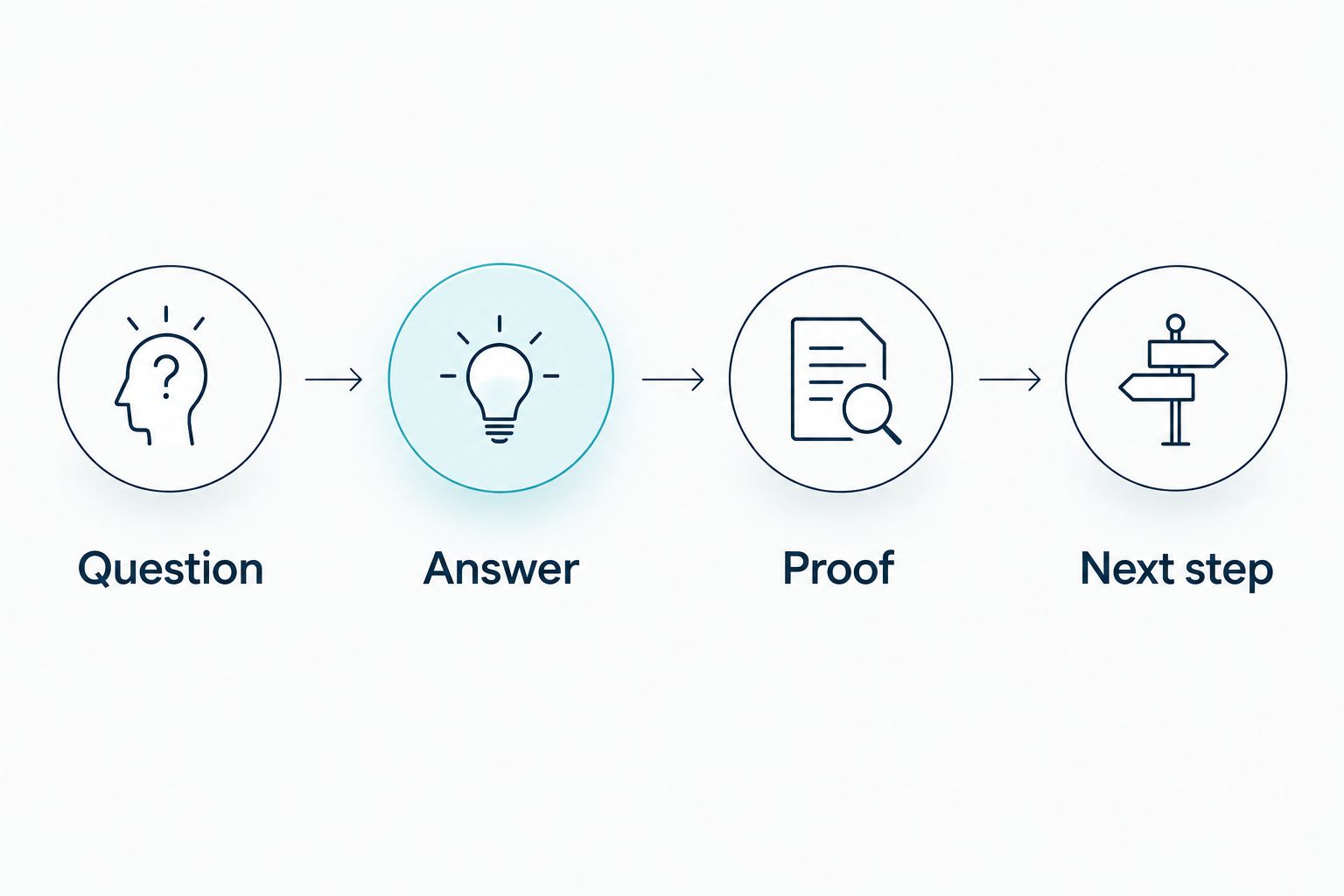
Open a spreadsheet before filming. Create columns named Question, Answer, Proof, Next step, Clip file, Approval and Publish date. These are fields you create for this workflow, so everyone can trace a published post back to the footage and the person who approved it.
- Enter the questions customers actually ask. Give each row one question, such as what a client should prepare before a first meeting. Do not make one row cover your entire service.
- Write a short Answer that stands alone. Someone who sees only that clip should understand the point without watching the full video.
- Add Proof you can show or explain without disclosing private information. That might be a process demonstration or an example you have permission to use. Leave the field blank rather than inventing evidence.
- Set a Next step for each row: ask a question, read a relevant guide or enquire about the service. Vary the next step according to what the answer actually helps the viewer do.
For a twelve-post plan, draft at least twelve rows, then mark the ones that require footage you do not yet have. Group similar questions so you can record them in the same setup. Expected result: your 2026 shot list tells you what to say, what to show and which posts still need a decision.
Set up your source folder
Keep originals separate from finished posts. That distinction prevents someone from accidentally publishing an unapproved clip or overwriting the only copy of a useful answer.
- In Google Drive, select New, then New folder. Name it for the shoot and include 2026 in the folder name. Inside it, make separate folders for originals, working edits and approved exports.
- Select New, then File upload to add the original files. Keep the files at their original quality; avoid passing them through a messaging app as your only handover method.
- Put the planning spreadsheet in the same shared workspace. Select Share and check who can edit it. Give editing access only to people changing the plan; ask reviewers to leave feedback without altering approved copy.
- Enter each source filename in Clip file. If several answers came from one recording, note that in the sheet instead of renaming the source every time an edit changes.
Expected result: an editor can find the source for any planned post, while a reviewer can identify the approved export without searching through rough cuts. Before you leave the folder, check that the person approving posts can open both the sheet and the preview files.
Configure the clip edits
Cut each post around one complete idea. Do not start with a fixed number of seconds and force the answer to fit; remove pauses and repetition, then check whether the remaining clip still makes sense to a viewer who has never met you.
- Match each marked spreadsheet row to its source footage. If the answer is missing, mark the row as missing footage rather than building a misleading clip from unrelated shots.
- Make a working edit with the question answered early. Add captions where spoken information matters, then review the words against the recording. Names and technical terms deserve a manual check.
- Review the crop on the device and account where the post will appear. Keep faces, demonstrations and essential text visible. Save a separate approved export when different placements need different framing.
- Watch the export with sound on and off. Check the opening, captions, ending and any music rights. Record approval in Approval only after the person responsible has seen that exact version.
Different source material calls for different edits. Use the table to choose a format; it is not a reason to turn every answer into every format.
| Format | Best for | Useful part | Limit to check |
|---|---|---|---|
| Spoken answer clip | A clear customer question | Keeps the answer in the speaker’s own words | Needs understandable audio and a complete answer |
| Process demonstration | A step the viewer needs to see | Shows what happens instead of only describing it | Needs usable, permitted footage |
| Text-led summary | A point that is easier to scan | Works when the main takeaway is short | Can lose context if the summary replaces a necessary explanation |
Expected result: each approved 2026 export has one clear purpose, a matching row in the sheet and a file that can be identified without opening every draft. If two edits say the same thing, keep the clearer one and use the open slot for a different question.
Schedule and track publication
An approved file is not a published post. Keep the final check with the person who controls the account, especially when the caption refers to a current service or makes a claim that needs checking.
- Add a Publish date for each approved row. Spread related answers across the four-week plan rather than placing every clip from one topic together.
- Write a caption that adds context instead of transcribing the whole video. Check the spelling of names, the intended next step and any claims shown on screen.
- Open the intended social account, create the post using that account’s current publishing controls and review its preview. Compare the preview with the approved export before publishing or scheduling it.
- After publication, note the live post in your tracker and mark the row complete. If a post is delayed, update its date there so another person does not publish the same clip twice.
Expected result: you can see what is approved, what is scheduled and what has actually appeared. For a 2026 campaign, that record also tells you which customer questions remain unanswered rather than merely how many files sit in a folder.
Turn new customer questions into follow-up clips
The same workflow works when you receive a new question after the shoot. Add a row, check whether existing footage contains a complete answer and edit it only if it does. If the answer requires new information, record a short follow-up instead of stitching together words that change the meaning.
This variant is useful when comments expose a gap in your original plan. Keep the new row connected to its source file and approval record, then place it into an open publishing slot. Do not silently replace an approved post: tell the person managing the account which file and date changed.
Troubleshooting
- The clip looks sharp in the editor but important text is cut off in the post preview. Return to the working edit, adjust the framing and review the export in the destination account before approval.
- The editor cannot find the answer in the footage. Check the content map and source filename first. If the answer was never recorded, mark it as missing footage; a caption should not pretend the video answers it.
- A customer appears in the background without clear publication permission. Do not publish that version. Choose an approved shot, remove the identifiable material or obtain permission before a new approval review.
- The same post appears twice. Check the live account against Publish date and the tracker. Give one person responsibility for the final publish action and record it immediately.
- Captions misstate a name or service detail. Correct the working edit, export again and send the corrected file for approval. A previously approved file is not approval for a changed 2026 version.
Customize your workflow
You can run this process yourself or discuss production help. Blessing M Digital video production is best for South African businesses that want a one-person studio and a written scope before work starts. Its clear fit is a defined production brief; its limit is that a mention of video production does not tell you which filming, editing, captioning or posting tasks are included. Agree on each deliverable before work begins.
| Approach | Best for | Advantage | Limit |
|---|---|---|---|
| Do it yourself | A business with usable footage and someone available to edit and approve | You control the files and publishing sequence | Your team must handle filming gaps, edits and checks |
| Discuss a studio brief | A business that needs to define production work with one person | You can set out the required outputs before work starts | You must confirm the actual scope; posting is not implied |
If you want to discuss that brief, Blessing M Digital offers video production as a service. State the number and type of outputs you need, who supplies source material, who approves edits and whether publishing remains your responsibility. A ready-made CV product is separate from this done-for-you service discussion.
FAQ
How do I repurpose video content for social media in South Africa?
Plan distinct customer questions, film complete answers, edit each post around one idea and track approval before publishing. A spreadsheet linking every export to its source file keeps the workflow checkable.
Can one video shoot supply a month of social posts?
Yes, if the shoot covers enough distinct questions and produces usable, permitted footage. Three posts a week for four weeks is one planning option, not a guaranteed output from every shoot.
What should I prepare before filming social posts?
Prepare a question list, a clear answer for each question, a shot list and an agreed approval process. Confirm who owns the source files and whether people and music in the footage can be used in the planned posts.
Should I publish the same clip on every social platform?
Review the clip in each intended placement before publishing it. Check the crop, captions and next step rather than assuming one export reads well everywhere.
What if my existing footage does not answer a customer question?
Record the missing answer or leave that post out. Unrelated footage and a caption that promises an answer the video never gives will not fix the gap.
Does Blessing M Digital publish the posts as part of video production?
Publishing is not specified as part of the video-production offer here. Ask Blessing M Digital to put filming, edits, approvals and any account work into the written scope before starting.
How do I keep track of approved video edits?
Keep originals, working edits and approved exports separate. Record the approved filename, reviewer and planned publish date in one tracker, then update it when the post goes live.
One last thing
Before scheduling the last post, compare your 2026 plan with the questions people actually asked during the month. Keep the answer that fills a real gap; drop a duplicate even if it is already edited. For Blessing M Digital video production or a shoot you manage yourself, the useful deliverable is a set of approved answers, not simply a folder full of clips.