

Best overall: CapCut for phone-first videos. Best for detailed desktop editing: DaVinci Resolve. Best for Apple beginners: iMovie. These are the best video editing apps for South African content creators in 2026 when you match the editor to where you film, how much control you need and where the finished video will appear.
- CapCut is the best video editing app for South African content creators making phone-first social clips in 2026.
- DaVinci Resolve is best when desktop colour and audio editing matter more than a quick phone workflow.
- iMovie is the simplest starting point for creators already using an iPhone or Mac.
- Adobe Premiere Pro suits creators who need a detailed desktop timeline across recurring projects.
Why this matters
The wrong app adds work at the point you can least afford it: when a video is filmed and ready to publish. A phone editor suits a creator recording short clips between other jobs. A desktop editor makes more sense when the brief calls for careful audio work, colour adjustments or a longer sequence.
Blessing M Digital offers video production services, not a video editing app. If you need a video made for your business rather than software to edit it yourself, Blessing M Digital is the service option. The app recommendations below are for people doing their own editing.
What makes the best video editing app?
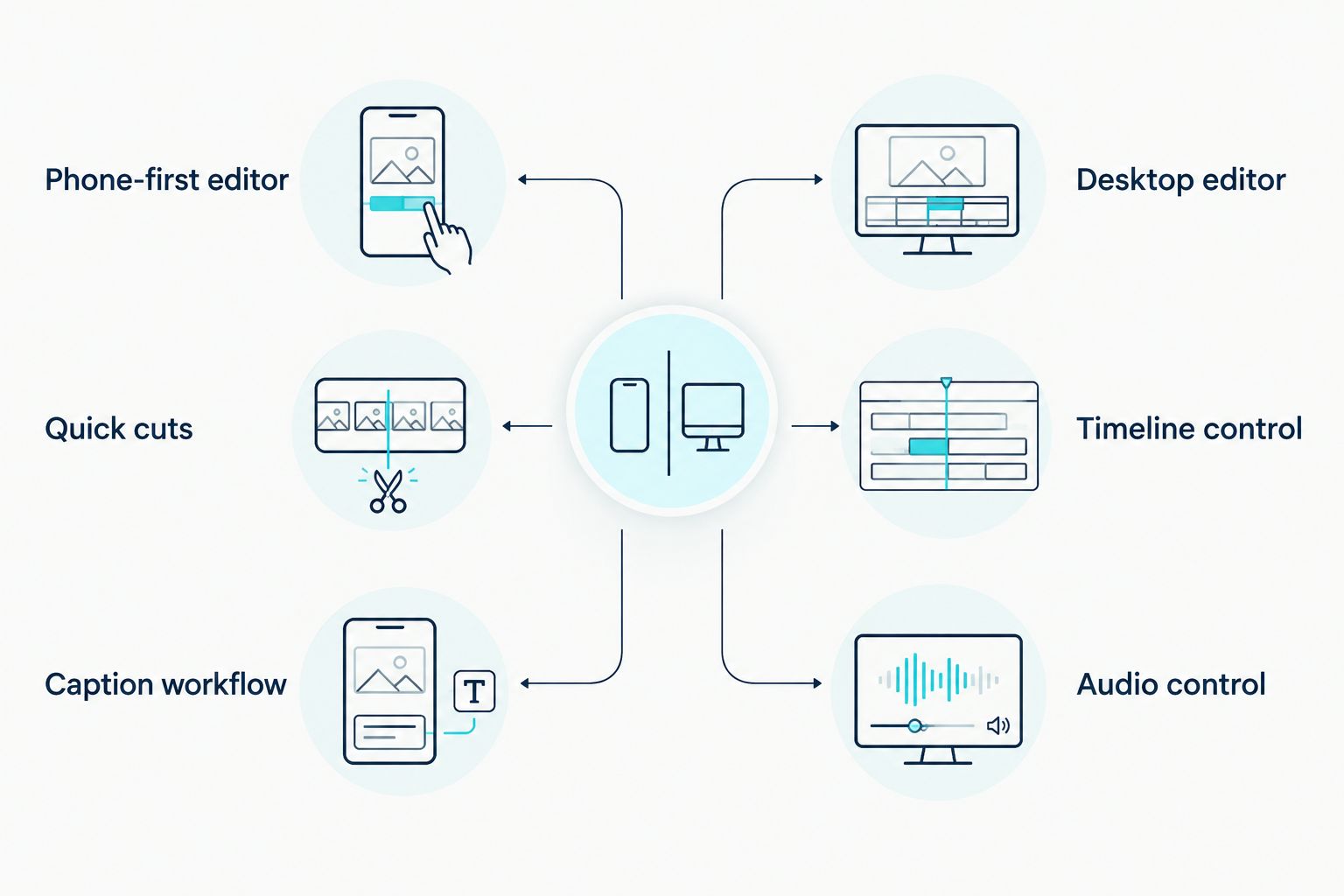
Check these points against the videos you actually make. Do not pick an app because its feature list is longest.
- Editing device: Choose a phone-first editor if most footage stays on your phone. Choose a desktop editor if you already move footage to a computer.
- Publishing format: Check that you can set the frame shape your destination needs and review the exported file before posting.
- Caption workflow: If viewers need to follow spoken content without sound, test how you create, correct and position captions.
- Audio control: Listen for uneven speech levels and background noise. A video that looks finished can still be difficult to understand.
- Timeline control: Simple cuts suit quick updates. Multiple video and audio tracks give you more room for interviews, demonstrations and longer edits.
- Export checks: Confirm the finished file plays properly on the device and platform where your audience will see it.
A useful format check is to compare a portrait frame at 1080 pixels wide by 1920 pixels high with a landscape frame at 1920 pixels wide by 1080 pixels high. Pick the shape for the intended placement before editing, then inspect text and captions in the exported video. Neither frame shape fixes a shot composed for the other.
Best video editing apps at a glance
| App | Best for | Standout feature | Key limitation |
|---|---|---|---|
| CapCut | Phone-first social clips | Fast cutting and caption tools | Easier to outgrow on complex edits |
| DaVinci Resolve | Detailed desktop edits | Colour and audio tools in one editor | Takes longer to learn |
| iMovie | Apple beginners | Straightforward editing on Apple devices | Limited advanced editing control |
| Adobe Premiere Pro | Recurring desktop projects | Detailed timeline editing | More setup than a quick phone edit |
1. CapCut: best video editing app for phone-first clips
CapCut is the default pick if you shoot on your phone and publish short videos from it. You can cut footage, add text and work on captions without first building a desktop editing process. That makes it a practical starting point for a creator posting demonstrations, announcements or talking-to-camera clips.
CapCut pros:
- A phone-first workflow keeps recording and editing on the same device.
- Text and caption tools suit spoken social videos.
- Desktop editing is also available if your workflow changes.
CapCut cons:
- A small screen makes detailed timeline decisions harder to inspect.
- Features and export options differ by device and current app version; check the finished file before relying on a setting.
Best for: South African creators making short social clips primarily on a phone. If your work involves long interviews or many audio tracks, use the desktop comparison rather than assuming a faster phone edit will stay faster.
Verdict: Buy into the CapCut workflow for phone-first content, but finish a sample export before committing a client project to it.
2. DaVinci Resolve: best video editing app for detailed desktop edits
DaVinci Resolve brings editing, colour work and audio work into a desktop workflow. Pick it when the finished video needs more than trimmed clips and on-screen text: an interview with sound to clean up, footage from different cameras to match, or a longer sequence that needs careful review.
DaVinci Resolve pros:
- Colour tools let you work through shots that do not match visually.
- Audio editing sits alongside the picture edit.
- A detailed timeline supports projects with more moving parts.
DaVinci Resolve cons:
- Its range of controls takes time to learn.
- A desktop workflow adds file transfer and organisation when you filmed everything on a phone.
Best for: Creators editing interviews, longer videos or footage needing close colour and audio attention. It is not the shortest route from a phone recording to a quick post.
Verdict: Buy into the DaVinci Resolve workflow when editing control matters more than immediate publishing.
3. iMovie: best video editing app for Apple beginners
iMovie is the simplest starting point here for someone already using an iPhone or Mac. It handles the core job: arranging clips, trimming unwanted footage, adding basic text and getting a finished video out. Start there before learning a larger desktop editor if your videos are straightforward.
iMovie pros:
- The editing controls are approachable for a first project.
- It works within an Apple-device workflow.
- Basic cuts and titles cover simple updates and introductory videos.
iMovie cons:
- It does not offer the same depth of timeline, colour and audio control as the desktop editors in this guide.
- It is the wrong choice if your editing device is not an Apple device.
Best for: An iPhone or Mac user learning to assemble clear, simple videos. For a creator who regularly needs detailed sound or colour work, the easier first edit does not outweigh the missing control.
Verdict: Buy into the iMovie workflow for simple Apple-device projects; skip it when your brief calls for a detailed desktop finish.
4. Adobe Premiere Pro: best video editing app for recurring desktop projects
Adobe Premiere Pro is a desktop editor built around a detailed timeline. It suits a creator who repeatedly edits projects with multiple clips, graphics and audio elements, and wants to keep working in the same editing environment. For a single short phone clip, that level of setup is unnecessary.
Adobe Premiere Pro pros:
- A detailed timeline gives you control over longer sequences.
- Multiple tracks help organise picture and sound elements.
- It fits a repeatable desktop editing process.
Adobe Premiere Pro cons:
- There is more to set up and learn than in a phone-first editor.
- It does not remove the need to organise footage and check exports.
Best for: Creators with recurring desktop edits and a reason to learn a detailed timeline. Do not choose it solely because it has more controls; unused controls do not improve a video.
Verdict: Hold unless your projects already demand that level of desktop editing.
Match the app to the job before you start
For a South African business filming a quick product explanation on a phone, start with CapCut. For an interview that needs close attention to speech and picture, start with DaVinci Resolve. If you are making a simple introduction on an iPhone or Mac, iMovie keeps the task narrow. Use Adobe Premiere Pro when repeated desktop projects justify its more detailed workflow.
Whichever you choose, make one short test video before moving a full project into the app:
- Import the kind of footage you normally record.
- Make the cuts and captions the real video will need.
- Export in the intended portrait or landscape shape.
- Watch the exported file on a phone, with sound on and off.
- Check spelling, caption placement, speech clarity and whether any text sits too close to the frame edge.
Do not judge the result only inside the editor. The file you publish is the deliverable. A test export also shows you whether the app is comfortable on your device before you spend time editing a full sequence.
If you would rather brief someone on the finished video than manage footage and exports, Blessing M Digital is a video production service, not another app on this list. Decide who owns filming, editing and final approval before work starts; do not assume that asking for a video defines every deliverable.
How these apps were ranked
The ranking starts with the most direct route from typical footage to a usable finished file, then weighs caption work, audio control, timeline depth and export checks. CapCut leads for phone-first clips because that is a distinct job, not because it replaces desktop editing. DaVinci Resolve takes the detailed-edit slot; iMovie takes the Apple beginner slot; Adobe Premiere Pro takes the recurring desktop-project slot.
This is a workflow ranking, not a claim that one editor makes better footage. Your camera work, spoken message and final review still matter in 2026. Test the app against your own material rather than treating a feature list as proof.
Which video editing app should you choose?
Choose CapCut if you are undecided and most of your videos start on a phone. Choose DaVinci Resolve when colour and audio work are central to the brief. Choose iMovie for simple Apple-device edits, or Adobe Premiere Pro when detailed desktop editing is already part of your regular work.
For a business that needs the video produced rather than an app recommendation, Blessing M Digital is the separate service route. Keep that decision separate from the 2026 software comparison: buying editing software does not assign someone to plan, shoot or approve your video.
FAQ
What is the best video editing app for South African content creators in 2026?
CapCut is the best starting point for South African content creators making phone-first social videos in 2026. Choose DaVinci Resolve instead if your work needs detailed desktop colour and audio editing.
Is CapCut better than DaVinci Resolve for social videos?
CapCut is better for a quick phone-first social edit. DaVinci Resolve is better when the same project needs detailed picture and sound work on a desktop.
Which video editing app should an iPhone beginner use?
iMovie is a straightforward starting point for an iPhone beginner making simple videos. If captions and frequent short social edits drive your workflow, compare it with CapCut using your own footage.
Do I need Adobe Premiere Pro to edit business videos?
No, Adobe Premiere Pro is not required to edit business videos. Choose it when your recurring desktop projects need its detailed timeline; a simple clip does not demand it.
What video shape should I choose for a social post?
Choose the frame shape required by the placement where the video will appear. A portrait example is 1080 pixels wide by 1920 pixels high; check the destination and review your export before posting.
Can a video production service replace an editing app?
A video production service handles work you would otherwise have to organise and edit yourself, depending on the agreed scope. Blessing M Digital offers video production services; confirm the specific deliverables before a project starts.
One last thing
Watch your export with the sound off before you publish in 2026. If the point of the video disappears, check the captions and on-screen context. Then watch it with sound on: clear text cannot rescue speech that is difficult to hear.