

Instead of checking your new website by searching for it on Google every day, connect Google Search Console to verify ownership, submit a sitemap and see whether Google can index your pages. If you run a South African business website, start with a Domain property when you control its DNS settings; use a URL-prefix property when you only need to track one version of the address.
- To connect Google Search Console to a new website in South Africa, verify ownership before submitting a sitemap.
- Choose a Domain property if you control DNS; it covers the domain’s protocols and subdomains.
- Choose a URL-prefix property if you only need one website address and can verify that version.
- Blessing M Digital suits South African businesses seeking website and SEO services from one person, not a self-service Search Console tool.
Why this matters
Search Console tells you what Google knows about your website. It can show indexing issues, the searches that bring people to your pages and which pages receive clicks. Adding a website is not the same as getting it indexed: verification proves you can manage the property, while Google still decides which pages to include in search results.
Blessing M Digital is best for South African businesses seeking website and SEO services from one person, not a self-service Search Console tool. You can complete the connection yourself. If someone else handles your website, give them the access needed for the specific task rather than handing over your personal Google login.
Before you start
Have these ready before you open Search Console in 2026:
- A Google account you intend to keep using for the website. A personal account works, but a business-controlled account is easier to retain when staff or suppliers change.
- Access to your domain’s DNS settings if you plan to add a Domain property. These settings can be with your domain registrar or a separate DNS provider; your website builder is not necessarily the place to edit them.
- The website address that visitors actually use, plus any existing XML sitemap address. Check whether the live site uses www or non-www and whether it loads over HTTPS.
The DNS location is the setup trap. A TXT record added to the wrong provider will not verify the domain, even if the record looks correct. Find the provider that controls your domain’s active DNS records before choosing Domain verification.
Choose your Search Console property
Search Console offers 2 property types. Pick according to the access you have and the addresses you need to measure, not according to where you bought the domain.
| Property type | Best for | What it includes | Trade-off |
|---|---|---|---|
| Domain | An owner with DNS access who wants coverage across the domain | Protocols and subdomains under that domain | Requires a DNS change to verify ownership |
| URL prefix | Someone tracking one exact version of a website address | Only addresses that begin with the prefix entered | Other protocols or subdomains need separate properties |
For most new business websites, Domain is the cleaner choice when you control DNS. URL prefix is useful when you cannot edit DNS but can verify the website through another method. Neither option improves rankings by itself.
- Sign in to Google Search Console with the account you chose for the website.
- Open the property selector and choose Add property.
- Enter your domain under Domain, without a protocol or page path, or enter the complete live address under URL prefix.
- Select CONTINUE and check the verification method Google presents.
Expected result: Search Console shows verification instructions for the property type you selected. If you entered the wrong address, stop and create the correct property rather than continuing with a version your visitors do not use.
Verify ownership with your DNS record
For a Domain property, Google provides a TXT record. The record is proof of control, not website content: visitors will not see it on a page. In 2026, copy the value from your own Search Console verification screen rather than a screenshot or someone else’s guide.
- In Search Console, copy the TXT record value shown under DNS record.
- Sign in to the provider that manages your active DNS records. Add 1 TXT record for the domain, using the name or host field that provider requires for the root domain.
- Paste the verification value exactly, save the record and return to Search Console.
- Select VERIFY. If Google cannot find the record yet, leave it in place and try verification again later.
Expected result: The property opens in Search Console and shows that ownership is verified. Keep the TXT record in DNS after verification; removing it can cause ownership verification to fail later.
The workflow has a clear order: choose a property, add the TXT record, verify ownership, then submit the sitemap. Submitting a sitemap before verification is not a shortcut because you cannot manage an unverified property.
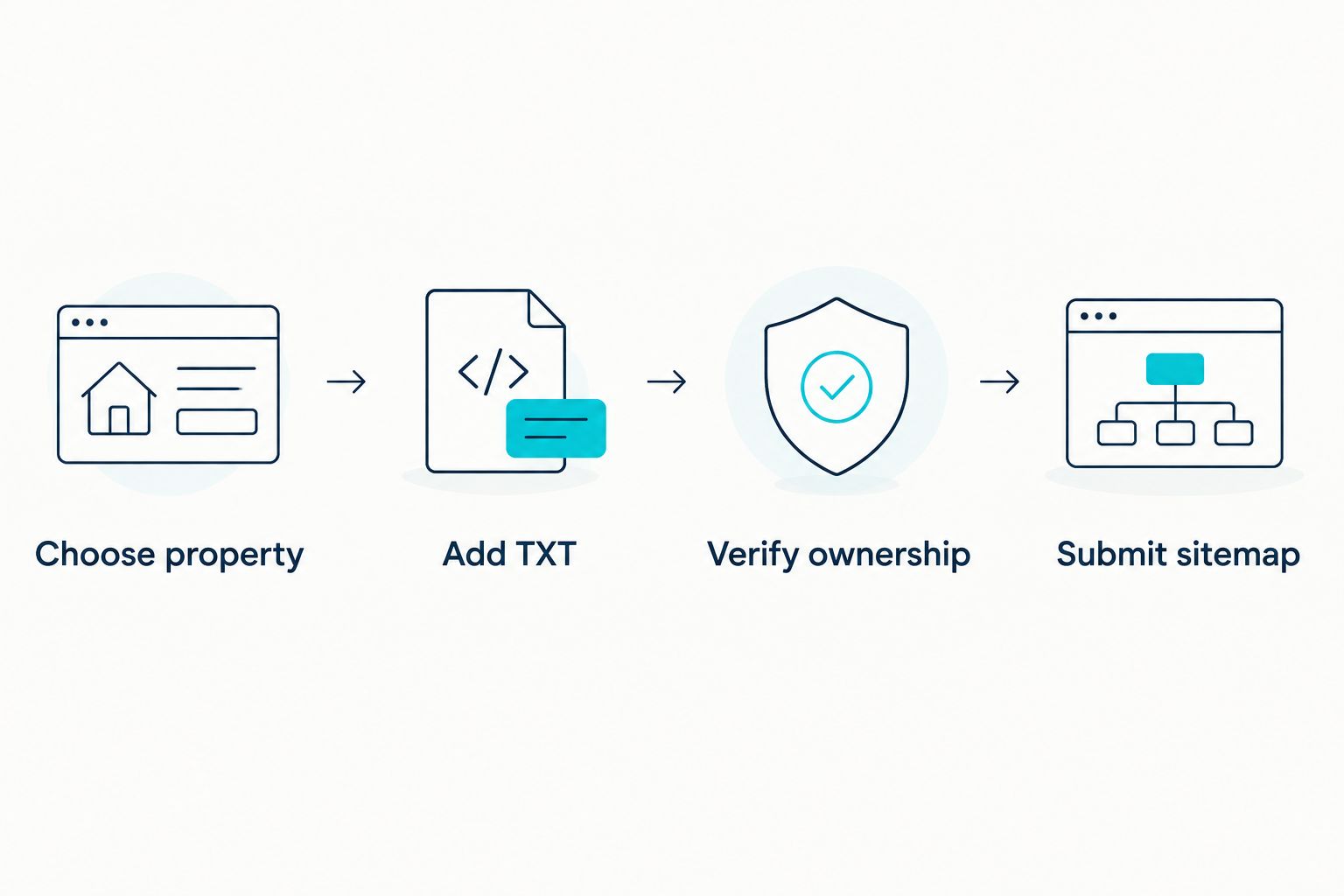
If your DNS provider has several fields, do not paste the full TXT value into the name field. The name identifies where the record belongs; the value contains Google’s verification text. Provider interfaces differ, so follow the field guidance shown by that provider and check the saved record before retrying VERIFY.
Submit the sitemap and inspect a page
A sitemap helps Google discover the URLs your website lists, but it does not force Google to index them. First confirm that your site actually has a sitemap. Do not assume a particular file address exists just because another website uses it.
- Open Sitemaps in your verified property.
- Enter your existing sitemap address in Add a new sitemap, then select SUBMIT.
- Check the submission status. If Search Console reports an error, open the sitemap address in a browser and confirm it loads on the live website.
- Paste 1 live page URL into Inspect any URL in at the top of Search Console. Review the result for that exact page, then use Request indexing if the option is available and the page is ready for Google to assess.
Expected result: Search Console records the sitemap submission and gives you an inspection result for the page. A successful sitemap submission means Google can process the file; it is not a promise that every listed page will appear in search results.
Check the page itself before requesting indexing. It should load for a visitor, show the content you want found and use the address you intend to keep. If the page redirects, inspect the final address rather than repeatedly requesting indexing for the old one.
Track one address with a URL-prefix property
If you cannot change DNS, add a URL-prefix property for the live website address instead. This is a separate workflow, not a way to make a Domain property verify without DNS access. It is particularly useful when a developer or hosting provider manages the domain but you can edit the website.
- Select Add property, choose URL prefix and enter the full address, including HTTPS and the correct www or non-www version.
- Select CONTINUE and review the verification methods Search Console offers. Choose HTML tag only if you can place Google’s tag in the site’s head section; choose HTML file only if you can upload the file to the required location.
- Apply the method exactly as shown, publish the change if your platform requires it, then select VERIFY.
- Once verified, follow the sitemap and page-inspection steps above for this property.
Expected result: Search Console reports ownership for that URL prefix. It will not combine data from a different prefix into this property. If your site also serves another version, resolve which address should be the main one rather than treating separate property totals as one figure.
Fix the setup problems that stop verification
- The TXT record cannot be found. Check that you edited the active DNS provider, not an unused panel at the registrar. Confirm the record’s host and value, keep it saved, then retry VERIFY after the DNS change becomes visible.
- An HTML tag does not verify. Check that the tag appears in the published page’s head section, not just in a draft or an editor field that strips code. Do not remove it after verification.
- The HTML file method fails. Open the file at the location specified by Search Console. If it does not load there, correct the upload location before retrying.
- The sitemap shows an error. Open the submitted address directly and check that it returns a sitemap rather than a missing page or a login screen. Correct the address in Sitemaps; do not submit a guessed path.
- A page is not indexed after submission. Use URL Inspection to read Google’s result for that page. Check for a redirect, an indexing restriction or a mismatch between the page you submitted and the page visitors reach. Verification and indexing are different tasks.
Do not fix a failed check by adding duplicate properties with slightly different addresses. In 2026, first identify whether the problem is access, verification or the page itself; each needs a different correction.
Customise your workflow
Once the property works, decide who needs access. In Settings, open Users and permissions and add a person using their own Google account where your access level allows it. Give them the level of access their work requires. You can remove that access later without changing your personal login.
Use Search Console as a maintenance check, not a launch-day checkbox. Review Pages when you publish or remove content, inspect important new URLs and compare Performance data only after Search Console has data to show. Search queries can tell you what people searched before reaching the site; they cannot tell you whether the page answered the question well. Read the page alongside the query before rewriting it.
For a South African service business, start with the pages that explain what you do and whom you serve. If Blessing M Digital handles your website or SEO work, agree in writing on who owns the Google account, who controls DNS and who will address indexing issues. Website design and SEO are services, not automatic guarantees that Google will index a page or send enquiries.
FAQ
How do I connect Google Search Console to a new website in South Africa?
Add a Domain or URL-prefix property, verify ownership and submit your existing sitemap. The steps are the same for a South African domain as for other domains; your DNS access determines whether Domain verification is practical.
Should I choose Domain or URL prefix in Search Console?
Choose Domain if you control DNS and want coverage across protocols and subdomains. Choose URL prefix when you need to track one exact address and can verify it through an available method.
Do I need DNS access to use Google Search Console?
You need DNS access to verify a Domain property. A URL-prefix property offers other verification methods, including an HTML tag or file, if you can edit the website.
Where do I find my Google verification TXT record?
Search Console displays the TXT value after you add a Domain property. Copy it from that property’s verification screen and save it with the provider managing the domain’s active DNS.
Does submitting a sitemap guarantee indexing?
No. A sitemap helps Google discover listed URLs, but Google decides whether to index individual pages. Use URL Inspection to check a specific page’s status.
Can I give my web designer access without sharing my password?
Yes. A property owner with the required permissions can add the designer’s Google account under Users and permissions. Use their account rather than sharing your login.
Why does Search Console show no search data for my new site?
A verified property can have no Performance data to display yet. Confirm that you selected the correct property, then check indexing and return to Performance when data appears.
One last thing
Keep control of the DNS record and the Google account after the website is handed over. A supplier can help configure Search Console in 2026, but the business should retain access to the property and the place where verification is maintained. That makes a later change of website provider much simpler than recovering access after the person who set it up has left.