

Instead of manually replacing your logo across files, pages and profiles after launch, set up one approved brand kit and use it to build, test and publish your website. This logo to website brand rollout South Africa workflow keeps the 2026 launch tied to one version of your name, visuals and message. Blessing M Digital is best for South African businesses that want one person to handle branding and website work, rather than a ready-made DIY platform.
- For a logo to website brand rollout South Africa, approve the brand kit before building pages.
- Keep the old website live while you test the replacement on mobile, desktop and its intended domain.
- Blessing M Digital suits businesses seeking one-person branding and website services; DIY gives you direct control but more setup work.
- Launch only after checking enquiries, page links and the public version of the site.
Why this matters
A logo file is not a website brief. A designer can use the correct mark and still build pages with outdated contact details, mismatched colours or no clear route to enquire. The fix is to approve the brand and the website content separately, then check that they work together before publication.
If you are still choosing how to make the logo, start with this guide to logo design tools for South African entrepreneurs. Whichever route you choose, the 2026 website brief needs an approved logo file, readable text and a clear description of what the business does.
| Rollout route | Best for | Advantage | Limitation |
|---|---|---|---|
| DIY logo and website | Owners who can make and check every change | Direct control of files and publishing | You handle design consistency, setup and testing |
| Done-for-you branding and website work | Owners who want to agree the scope and hand off production | One person can work across both parts | You still need to supply accurate content and approve the result |
Blessing M Digital offers branding and website services through a one-person creative and digital studio. A service does not remove your approval job: the business owner remains the source of truth for names, contact details, services and legal wording.
Before you start
- Gather access. Identify who controls the domain, hosting or website platform, current site and business email. If different people hold those accounts, arrange access before you set a launch date. You do not need to share a password by email; use your platform’s access controls where available.
- Gather content. Prepare your approved business name, logo files, service descriptions, contact details and the images you have permission to use. Mark any claims that still need checking instead of publishing them as facts.
- Check the non-obvious risk. Find out where the current domain’s email records are managed. Changing nameservers to launch a website can affect email if the existing DNS records are not carried across. Record the current setup before changing it.
For a 2026 rollout, decide who approves the brand, who approves page copy and who can make the domain change. If those decisions belong to different people, put their names in the brief. An unanswered approval request is a launch blocker, not a design problem.
Prepare the brand kit
The brand kit is the source for the site build. It does not need to be elaborate, but it must make the common choices unambiguous. A logo alone cannot tell a website builder which text remains readable against a background or which image version belongs in a narrow header.
- Choose the approved logo version. Identify the version for a light background and, if one exists, the version for a dark background. Do not assume an alternative version exists; request one before designing a dark header.
- Keep usable source files together. Ask for the available original and web-ready files. Check that the mark stays clear at a small on-screen size instead of enlarging a low-resolution image.
- Write down the visual decisions. Record approved colours and type choices, plus any restrictions on editing the logo. Do not let a website builder choose replacements simply because a font or colour file is missing.
- Approve the business wording. Settle the business name, short description and names of services. A new logo paired with an old service list is not a finished rollout.
Expected result: someone building the site can choose the correct mark, styling and wording without guessing. Keep rejected drafts outside the approved folder so they cannot be uploaded by mistake.
Configure the website content
Treat each page as a job for the visitor, not as a space to fill. A South African tradesperson might need a service description and an enquiry route; a creator might need selected work and a way to discuss a project. Those are examples of page purposes, not a prescribed set of pages for every business.
- Map the pages. List each planned page, its purpose and the action a visitor should take. Remove duplicate pages that answer the same question without adding useful detail.
- Place the approved logo. Use the brand kit version that remains legible in the header. Check the logo at a narrow screen width before adjusting the layout around a large desktop version.
- Add checked copy and images. Put the actual service, audience and contact information on the relevant pages. Do not copy claims from an old brochure unless they are still accurate in 2026.
- Connect each enquiry route. Set the destination for forms, email links and any contact buttons. Send a test enquiry and confirm that it reaches the person who will answer it.
- Review the page basics. Give each page a descriptive title, a clear main heading and useful descriptions for informative images. Avoid using the same title for different pages.
Expected result: a visitor can identify the business, understand what it offers and make contact without relying on a logo to explain the service. The person approving the site can compare each page against its stated purpose.
The build moves in a sequence: approved brand kit, checked content, working enquiry routes and a public-site test. Skipping the content check simply shifts the correction to after launch.
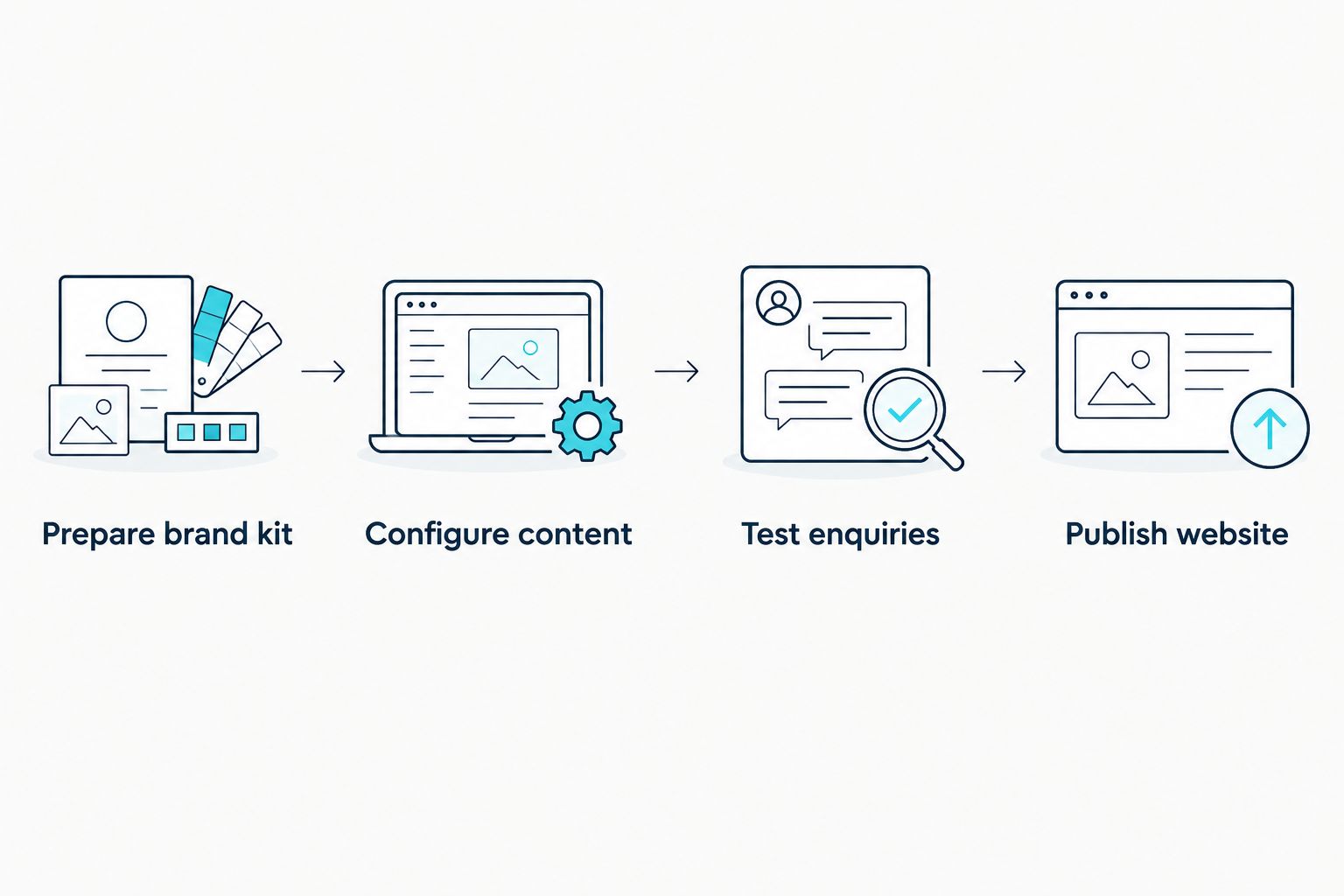
Publish and verify the website
Publishing is a separate task from approving a preview. A preview can look correct while the public domain still points at the old site, a contact form sends to the wrong address, or a mobile menu hides a page.
- Confirm the publishing owner. Identify who can change the website’s domain settings and who controls DNS. Do not make a nameserver change simply because it is available; follow the requirements of the chosen host while preserving records needed for email.
- Check the replacement site before switching. Open its pages and test the main enquiry route. Check text and navigation at 320 px, 768 px and 1440 px viewport widths as practical test points, not as a claim that every device has those dimensions.
- Publish using the platform’s own instructions. Enter only the domain records required by that platform. DNS providers use different control-panel labels, so match the required record type and value rather than copying a button sequence from another provider.
- Test the public domain. Open it in a fresh browser session, follow the main navigation and send another enquiry. Check business email separately after any DNS change.
Expected result: the intended website opens on the public domain, its links work and an enquiry reaches the right destination. Keep the old site available until you have verified the replacement; do not rely on a preview as proof of launch.
Roll out an updated logo on an existing website
If the website is staying and only the identity is changing, keep the same brand-approval step but change the publishing plan. In 2026, the task is to replace every visible use of the old identity without accidentally changing working pages or domain settings.
- Inventory the old mark. Check the header, footer, downloadable files, social preview images and any graphics embedded in page content. A new header logo does not update an old PDF.
- Replace approved assets. Use the brand kit and check how each replacement appears on narrow and wide screens. Review any page text that refers to an old business name.
- Test without a domain switch. Check navigation and enquiries on the existing public site after the update. Leave DNS alone if the domain and hosting are not changing.
Expected result: the existing site keeps working while the visible brand matches the approved version. This is a narrower job than building a replacement website; define which pages and files are included before work starts.
Troubleshooting
- The logo looks blurred in the header. Check whether a small image was enlarged. Use a suitable approved source file and retest it at narrow screen widths; do not redraw the mark from a screenshot.
- The public site still shows the old version. Check that the correct site was published and that the domain points where the chosen platform requires. Test in a fresh browser session before making another change.
- A form appears to submit, but nobody receives it. Confirm the configured recipient and inspect the form’s submission record if the platform provides one. Send a new test rather than assuming an on-screen success message proves delivery.
- Business email stops after a domain change. Compare the live DNS records with the saved email setup and the email provider’s required records. Restore the correct records through the account owner; do not guess their values.
- The mobile menu hides a page. Check the menu setup and the page’s published status, then test at a narrow width. A page that exists in the editor is not necessarily reachable by a visitor.
These checks apply whether you build the site yourself or commission the work. For a Blessing M Digital project, agree in writing who supplies account access, who tests the contact route and what counts as an approved 2026 launch.
Customize your workflow
Add tasks only when they match the business. A tradesperson’s site needs a direct explanation of the work and a usable enquiry route; the website design guide for tradespeople develops that page-planning question. A business with downloadable material needs to check that those files carry the approved identity too.
For done-for-you work, state the deliverables and limits before production: which brand files are being prepared, which pages are being built, who writes and approves copy, who controls the domain, and which post-publication checks are included. Blessing M Digital works across branding and websites, but the exact project scope must be agreed rather than inferred from that service list. DIY work needs the same checklist, even if you are both builder and approver.
FAQ
What comes first in a logo to website brand rollout in South Africa?
Approve the brand kit before building the website. The approved logo, visual choices and business wording give the builder a clear reference for every page.
Can I launch a website before my new logo is approved?
You can plan page content first, but do not treat the visual build as final before approving the logo. Otherwise, headers and graphics can require another review.
Do I need to change my domain when I change my logo?
No. A logo update does not require a domain change. Change domain settings only when the chosen website setup requires it, and check email records before doing so.
How do I know the new website is ready to publish?
Check the content, navigation, mobile layout and enquiry route on the intended site, then repeat key checks on the public domain. A working preview alone is not a launch test.
Is DIY or a done-for-you rollout better for a small business?
DIY suits an owner who wants direct control and can manage setup and testing. Done-for-you branding and website work suits an owner who wants to agree a scope and hand off production, while still supplying facts and approvals.
What should a website brief include after a logo redesign?
Include the approved brand files, page purposes, checked business copy, contact destinations and the person responsible for domain access. Specify who approves the work before publication.
One last thing
Test the enquiry route after the public domain is live, not only in the preview. A finished-looking 2026 site that cannot deliver a message has failed its most practical check. Save the approved files and final page copy together so the next update starts from the published version, not an old draft.